The Server edition runs as a web server accessible from any browser. It supports multiple simultaneous users, PostgreSQL, Docker, and advanced configuration options.
The Server edition is available for Windows and Linux only. macOS users should use Docker or the Standalone edition instead.
The recommended way to run Lighthouse is via Docker. If you prefer, you can also run the binary directly on Windows or Linux.
Supported Platforms
| Windows | Linux | Docker | |
|---|---|---|---|
| Binary | ✅ | ✅ | — |
| Docker | ✅ | ✅ | ✅ |
Binary Installation
All packages include everything — no prerequisites required. Download the latest version through our Website.
Windows
- Download the latest
Lighthouse.exefrom our Website. - The Windows binary is code signed. Simply double-click the executable to start Lighthouse.
- The app will open a terminal window showing log messages.
- By default, Lighthouse runs on:
- HTTP: http://localhost:5000
You should see the (empty) landing page: 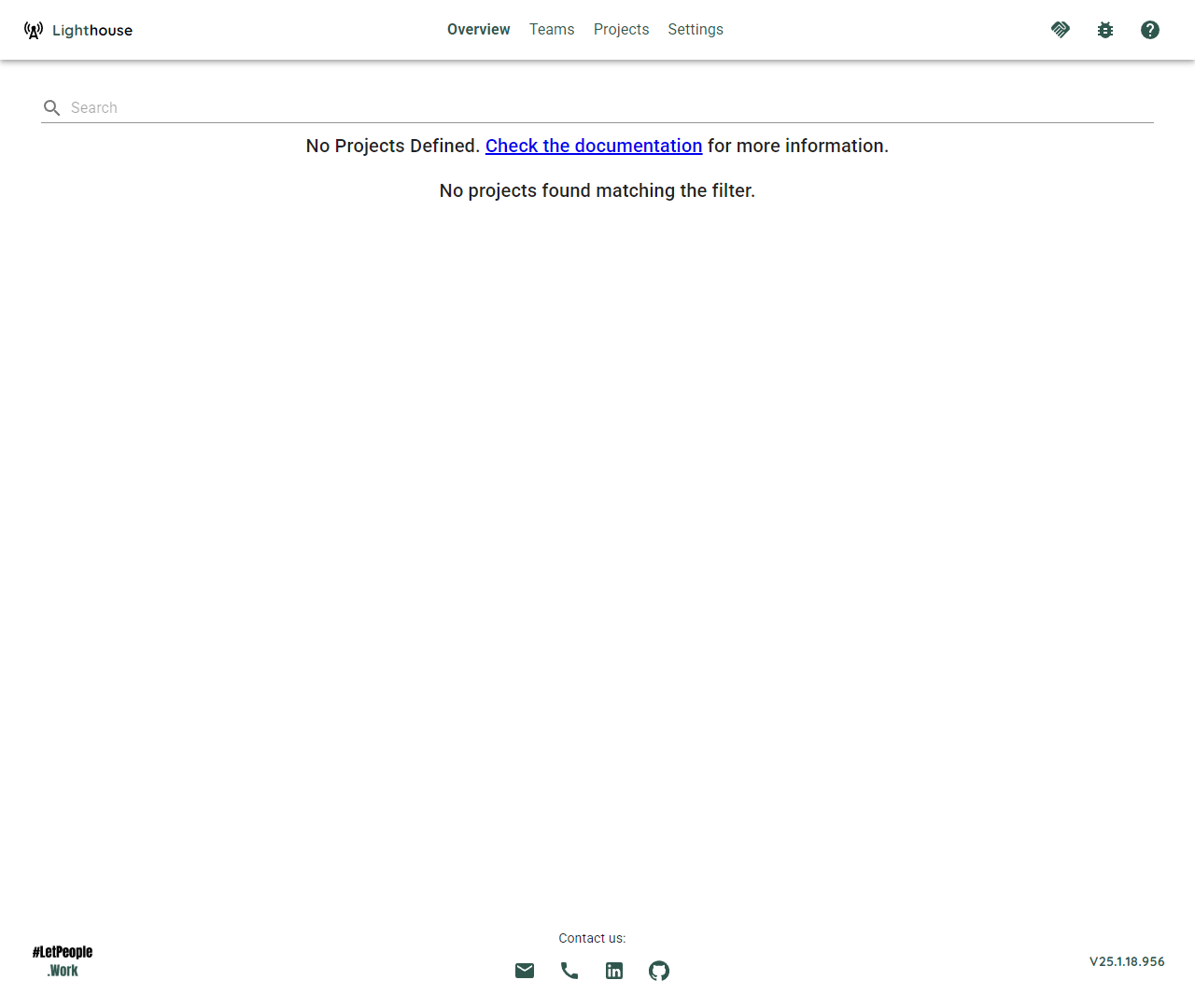
Linux
- Download the latest Lighthouse release for Linux from our Website.
- Extract the archive to your desired location.
- If the
Lighthousefile is not executable, make it so:sudo chmod +x Lighthouse - Open a terminal, navigate to the Lighthouse directory, and run:
./Lighthouse - By default, Lighthouse runs on:
- HTTP: http://localhost:5000
You should see the (empty) landing page:
Docker
The easiest way to run Lighthouse is via Docker. Lighthouse is available as a container hosted in the GitHub Container Registry:
docker pull ghcr.io/letpeoplework/lighthouse:latest
Available Tags
latest: Latest released version (if you want to keep using the “latest and greatest”)dev-latest: Newest features currently in development (potentially less stable)- Specific version tags (e.g.,
25.1.10.1012): Pin to a specific version (recommended for production) - Check packages for all available versions
Prerequisites
If you don’t have Docker installed, you can find installation instructions in the Docker docs.
Running Lighthouse
docker run -d -p 8081:443 -p 8080:80 -v lighthouse-data:/app/data -v lighthouse-logs:/app/logs -e "Database__ConnectionString=Data Source=/app/data/LighthouseAppContext.db" ghcr.io/letpeoplework/lighthouse:latest
This will:
- Map host port 8081 to container port 443 (HTTPS)
- Map host port 8080 to container port 80 (HTTP)
- Keep the database, the key that encrypts your credentials, and the logs in Docker volumes that outlive the container
The lighthouse-data volume holds more than the database. On its first start Lighthouse creates the key that encrypts your stored credentials and keeps it in a folder beside the database file — /app/data/keys on this command. Both have to be on the same volume. Recreate the container without it and the database goes with it; restore a backup that has the database but not the key folder and it is worse, because everything looks intact while every stored credential has become unreadable. Back the two up together, or supply the key yourself with Encryption__Key so the container has nothing of its own to lose — see Encryption Key.
Use Docker volumes, not folders from your machine. The image runs as a non-root user, so a bind mount like -v ".:/app/data" is a directory it is not allowed to write: Lighthouse stops with Access to the path '/app/data/keys' is denied. A bind mount for the logs fails more quietly — Lighthouse starts, says it is logging to /app/logs, and writes nothing there. Both are why the command above names volumes.
You can find more information on the configuration options under Configuration.
Updating Lighthouse
If a new version is released, you will see an indicator in the lower right corner of the footer. Clicking it opens a dialog with release notes for all newer versions.
Published packages do not include the database — your data is preserved across updates. Lighthouse always supports migrations to newer versions.
We recommend staying on the latest version. We continuously update Lighthouse with new features and bug fixes, and only offer support on the latest version.
Binary: Automatic Update
On Windows and Linux, Lighthouse supports automatic updates directly from within the app.
An automatic update keeps your appsettings.json, so settings you changed survive it. The two update paths differ here: replacing the files by hand overwrites that file with the one from the package.
Binary: Replace Files
You can replace the files in the directory manually. Download and extract the latest version, then copy/paste into your Lighthouse folder, overriding all existing files.
This overwrites appsettings.json with the packaged one. If you changed anything in it — a port, a certificate path, a database connection string — take a copy first and put your changes back afterwards.
Stop Lighthouse before replacing files to avoid conflicts.
Docker
Pull the latest container image:
docker pull ghcr.io/letpeoplework/lighthouse:latest
Automatic in-app updates are not supported on Docker. Use docker pull to update.
Troubleshoot Startup Issues
If Lighthouse is not available on the expected port after following the instructions, inspect the logs in the terminal and look for an Error.
You can share logs via our Slack Channel for support.
Address already in use
10:26:11 - ERROR - Host: Hosting failed to start
System.IO.IOException: Failed to bind to address http://[::]:5000: address already in use
Another application is using the port. This may be another Lighthouse instance. If the port is blocked and you can’t change the other application, you can adjust the port Lighthouse uses — see Configuration Options.