Whether you want to create a new team or edit an existing one, you can use this page to specify all the details that make up your team.
Teams can be created from scratch with default settings, by cloning existing teams, or edited to modify their configuration.
Creating Teams by Cloning
You can create a new team by cloning an existing team’s settings. When you clone a team:
- Navigate to the team overview page and click the “Clone” button next to the team you want to copy
- This opens the team creation page pre-filled with the original team’s settings
- The team name is automatically prefixed with “Copy of “ followed by the original team’s name
- All settings including work item query, work item types, states, throughput configuration, and other team-specific settings are copied
- Only the team settings are copied - portfolio assignments and other relationships are not automatically copied
- You can modify any of the pre-filled settings before saving the new team
Cloning is useful when setting up multiple teams with similar configurations or when you want to create variations of existing team setups.
- Creating Teams by Cloning
- Validation and Save
- General Configuration
- Forecast Configuration
- Work Item Types
- States
- Tags
- Flow Metrics Configuration
- Estimation
- Advanced Configuration
Validation and Save
Lighthouse validates your settings against your work tracking system — it runs a query and makes sure it executes and selects the work you meant. The validation checks the following things:
- The connection to the work tracking system is valid (the connection settings are ok)
- The query can be executed (the query is having a correct syntax)
- The query returns at least one closed item (we must have a Throughput in order to forecast, so we need at least one closed item)
When you create a team, validation is a gate: you Validate first, and only a team that passes can be created.
When you edit an existing team, there is no Save button — every valid change is saved automatically, and the All changes saved indicator tells you it was persisted. Lighthouse then validates the saved settings in the background and shows a warning if they don’t hold up, for example if a Work Item Type is misspelled and now matches nothing. Your edit is still saved; the warning tells you it won’t bring in the work you expect. Correct the setting and the warning disappears.
If a team suddenly shows no work items, open its settings and look for that warning — a typo in a Work Item Type or a state is the usual cause.
General Configuration
The general information contains the name of your team. This can be anything that helps you identify it.
We suggest to use the same name as you use in your work tracking system to identify your team.
Work Tracking System
In order for Lighthouse to get the data it needs for forecasting, it needs to connect to your Work Tracking System. Work Tracking Systems are stored in the Lighthouse Settings and can be reused across Teams and Portfolios.
When creating or modifying both Teams or Portfolios, you can either choose an existing connection or create a new one.
Each connection has a specific name and a type. Depending on the type, different configuration options have to be specified. Check the detailed pages on Jira, Azure DevOps or Csv for details.
Work Item Query
The Work Item Query is the query that is executed against your Work Tracking System to get the teams backlog. The query should fetch all items that “belong” to this team and the specific syntax depends on the Work Tracking System you are using.
See the Jira and Azure DevOps specific pages for details on the query.
If you chose a file-based Work Tracking system (like CSV), you will see an upload dialog instead of a query, which will allow you to upload the datasource.
Forecast Configuration
Throughput is the base of any forecast Lighthouse is making. For every team, you can decide whether you want to use dynamic throughput that looks at the last number of days and is every day updating, or one that is using a fixed period of time.
We highly recommending using a dynamic Throughput over a fixed one. The fixed dates might help to overcome special situations temporarily. In general, you will get less accurate results with fixed dates, as your teams throughput will change over time, and Lighthouse will not take this into account if the Throughput will be always looking at the exact same period of time.
Throughput History
This is the number of days of the past you want to include when running forecasts for this team. In general this should be more than 10 days, and represent a period where this team was somewhat working in a stable fashion.
We recommend using a value between 30 and 90 days. Fewer and it might be too sensitive to outliers. And more than three months is often too far away for being useful.
Throughput Start and End Date
If you use a fixed Throughput, you must specify a start and end date. The end date cannot be in the future, and the start date must be at least 10 days before the selected end date. This is because we must have at least 10 data points to create a decent forecast.
As mentioned above, use a fixed Throughput with caution, and ideally only temporarily. Examples where it may be useful is if most of the team is off for some time (for example if the offices are closed for a week or more, like it happens for some companies in the Christmas period). As soon as you have enough data after this period again, we encourage you to switch back to the dynamic Throughput.
Exclude Items for Throughput (Premium)
The Exclude Items for Throughput setting lets a team-admin define which work items should NOT count toward forecast throughput, using the same rule editor Lighthouse already uses for rule-based deliveries. This is a Premium Capability.
The intent is to remove “noise” from the Monte Carlo throughput sample so the forecast reflects the kind of work the team will actually deliver against the upcoming feature backlog. Typical exclusions are Bug items, orphan items (work items with no parent), and tag-driven categories like maintenance or spike.
How the rule set is defined
The editor offers the following operators:
Equals/Not Equals— exact match (case-insensitive).Contains/Does Not Contain— substring match (case-insensitive).Is Empty/Is Not Empty— match when the field is blank (empty string, missing, or null) / not blank. These two operators take no value input — only the field selection is needed.
Fields available:
TypeStateNameReference IDParent Reference ID(useIs Emptyto match orphan items)Tags- Connector-defined
additionalField.{id}entries — same set as delivery rules for this team’s connection
A rule that matches a work item means exclude this item from forecast throughput. This is the inverse of how delivery rules work, where a match means “include”. The editor labels make the semantics explicit (“Exclude items where…”). An empty rule set means “no filter” — behaviour is identical to teams without the setting configured.
The rule set is constrained to a maximum of 20 conditions, each with a value up to 500 characters and a known field key. Saving with zero conditions explicitly clears the filter; no separate “delete filter” action exists.
Combining multiple rules — AND or OR
When the rule set has two or more rules, a Match toggle appears above the rule list: choose All (AND) to require every rule to match, or Any (OR) to require at least one. The mode applies to the whole group — you cannot mix AND and OR within a single rule set.
A concrete example: to exclude everything that doesn’t directly contribute to feature delivery, configure:
Match: Any (OR)
  Type Equals Bug
  Parent Reference ID Is Empty
That excludes both Bug-typed items AND orphan items (work items with no parent) from forecast throughput — a useful default for teams whose Monte Carlo history would otherwise be skewed by these two categories.
Save and reload — making changes take effect
A valid rule edit is saved automatically — there is no Save button. Once the change is persisted, the editor shows an All changes saved indicator.
The cached throughput is not recomputed automatically, because that is an expensive backend operation. After editing the filter, use the one-click Reload throughput now action in the editor to recompute throughput against the new rule set. Until you do, forecasts on the team detail page continue to use the previously cached throughput.
Where the filter applies
- Feature Forecasts — always use the filter when one is configured.
- Team Forecast (How Many / When) — per-run toggle labeled “Use filtered Throughput”, on by default.
- Backtest — per-run toggle labeled “Use filtered Throughput”, on by default. Toggling clears any prior backtest result and the backtest re-runs automatically against the new setting.
- Throughput Run Chart, Throughput PBC, and Predictability Score Details — per-view toggle labeled “Use filtered Throughput”, off by default (raw view is the default; the filtered view is opt-in for these visualisations).
Quick-settings indicator
When a filter is configured, the Throughput icon in the team’s quick-settings bar (header) changes to an info colour and its tooltip mentions “Forecast filter active — some throughput items excluded”. This signals at a glance that the team has the feature configured, without occupying space on every chart or forecast surface.
Empty-filter fallback
If the rule set excludes every closed item in the throughput window, the forecast or backtest falls back to unfiltered throughput so the result is still usable even when the filter is too aggressive for the current window. The throughput charts behave differently: in their filtered view a zero-match window simply shows an empty chart (the user explicitly asked for the filtered view, so no automatic fallback occurs).
Premium gate and license downgrades
The rule editor and all per-run / per-view toggles are visible only to premium tenants. If a premium tenant downgrades, the persisted rule set remains on the team (no destructive deletion); the backend silently no-ops the filter and the toggles disappear from every surface. Re-upgrading the license restores filtered behaviour without re-configuration.
Work Item Types
Cut Off Days
The Cut Off Days setting controls how far back in time Lighthouse will look when fetching work items. Work ITems that were closed before this date will be ignored. This helps to speed up the update and forecast process.
- Team default: 365 days
- Enter a value (in days) appropriate for your team — shorter windows emphasize recent behaviour, longer windows smooth variability.
This only applies to items that are considered done. If you have old items in your backlog, they will still appear.
In order to properly forecast, Lighthouse needs to know which items your team works on that are relevant for the forecast. Thus you can define the item types that should be taken into account for this specific team.
Common examples for item types on team level are “User Story”, “Bug”, and “Product Backlog Item” for Azure DevOps, and “Story” as well as “Bug” for Jira.
You can remove types by hitting the remove icon, and add new ones by typing them in and hit Add Work Item Type.
You have to type the exact type name as it’s used in your Work Tracking System. Make sure to use the exact spelling and casing. Spaces (for example in ‘User Story’) are supported.
States
In order for Lighthouse to judge whether an item is done, in progress, or not even started, you must specify which states map to which category.
| State Category | Description |
|---|---|
| To Do | Items that are in this state are discovered as pending for this team. It is important to have all those states mapped as so Lighthouse can discover pending work for features in a portfolio. |
| Doing | Items that are in this state are actively being worked on. Lighthouse will mark features as In Progress based on these states. |
| Done | Items that are done contribute to the Throughput. Based on this value forecasts are made. |
You don’t have to add every state to one of the categories. For example you might have a Removed or Canceled state, which is not mapping to any of the categories. You don’t have to specify it, then the item will not be existing for Lighthouse (only items that are in any of the mentioned states are discovered by Lighthouse).
For Azure DevOps, the common states are: New or Backlog (To Do), Active, Resolved, Comitted (Doing), and Closed or Done (Done).
For Jira, the common states are: To Do (To Do), In Progress (Doing), Done (Done).
While Azure DevOps can handle if you specify states that don’t exist, Jira will not execute a query with a state that is not in its system. That means for Jira you have make sure everything you mention does exist exactly as specified, as otherwise the Validation will fail.
State Mappings
State Mappings let you define Lighthouse-friendly state names and map one or more provider states to each name.
This gives you a two-step setup:
- Define mappings in the State Mappings section.
- Use the mapped names in To Do, Doing, or Done.
Examples
- Single-state rename: map
ActivetoImplementation. - Multi-state grouping: map
In Progress,Code Review, andQA ReviewtoImplementation.
After mapping, Lighthouse exposes the mapped name as the state value in Lighthouse views and APIs.
Validation Rules
- Mapping names must be unique.
- A mapping must contain at least one source state.
- A source state can only exist in one mapping.
- Mapping names can be used in To Do / Doing / Done (this is the intended workflow).
Notes
- Existing configurations without mappings continue to work unchanged.
- Cloning a team copies State Mappings together with the other team settings.
- Updating mappings is treated as a work-item-related change and triggers refresh/invalidation behavior.
Tags
Tags allow you to add any kind of additional information that may be helpful for you to identify this team. This may be a specific portfolio or initiative, a department, business unit, or tribe, or anything else that somehow might be useful. You can add as many tags as you want. Existing tags will be shown as proposal.
Tags are checked when you use the search functionality.
Flow Metrics Configuration
Under this section, you’ll find all configuration options related to Flow Metrics.
System WIP Limit
If you want to work with WIP limits, Lighthouse allows you to specify one for the overall system you are working in. This configuration has no impact on any forecasting, but it will show up in your metrics section and helps you identify if you are above or below your limit. If set, the limit will show up:
- In the header of a team
- In the Work In Progress Widget as a Goal
- In the WIP Run Chart as a horizontal line
Lighthouse is not allowing you to set state specific limits, it will check everything that is in progress, independent of the states (but based on your state configuration).
A WIP limit is not just a maximum you should not exceed. It is what we think is our optimum capacity. Meaning that, while we should not exceed it, we should also not be below it, as this means, we’re not running at our optimum. While we should take natural variability into account, we should aim to be at the limit we set, and neither below nor above.
Feature WIP
If your team is working on multiple Features at the same time, you want to adjust the Feature WIP to this number. This will impact your forecasts for portfolios, and will lead to different predicted delivery times.
Working on one Feature at a time does not mean only having one item in progress. It means that all items that are in progress belong to the same feature.
As an example, if you work on a single feature at a time, this feature will be done as fast as possible. If you work on two features, the first feature will finish later (as at least some of the teams effort goes to the second feature). In an ideal world, you have a Feature WIP of one. Your reality might look different, and that’s ok. Just know that ideally you should strive to be as close as possible to a Feature WIP of one.
Automatically Adjust Feature WIP
You can set your Feature WIP to anything you like, there does not need to be a correlation to what is actually happening (although obviously it would be good if the number reflects reality…). If you tick this box, Lighthouse will automatically adjust the Feature WIP with every Team Data Update to the number of Features that are right now being worked on by this team.
Tick this box if you want to increase transparency. A higher Feature WIP will lead to late delivery of many features. Not everyone will like this. It may be a good way to show why we should use focus (and Lighthouse might give you the underlying data for that). Keep fighting the good fight!
Service Level Expectation
You can enable a Service Level Expectation (SLE) for your teams. If you do, you must define a probability and a range in days. You can use this for forecast single item delivery and to communicate with your stakeholders, as well as to inspect your delivery performance.
If you enable the SLE, you will get additional information in the Metrics View.
Blocked Items
Enable Configure Blocked Items to define what “blocked” means for your process. Lighthouse uses a rule builder (“Mark work items as blocked where…”) — the same rule engine used elsewhere in the product. Add one or more conditions on a field (for example a tag/label, a state, or any other work item field), pick an operator and a value, and combine them with and / or. An item counts as blocked when the rule matches.

We do not recommend identifying blocked work by state alone. Tags/labels work better from a Flow perspective. More Details here.
Blocked Staleness Threshold
Optionally enable Set Blocked Items Staleness Threshold and set a number of days. This calibrates the Blocked Over Time status indicator: it turns amber once the oldest blocked item ages past 75% of the threshold and red once it reaches the threshold. Without a threshold configured, that widget prompts you to set one. It also decides when a blocked Work Item counts as stale: once it has been blocked for at least this many days.
Process Behaviour Chart Baseline
Lighthouse can show Process Behaviour Charts (PBC) in the Metrics view. To enable them, configure a baseline start and baseline end date.
If no baseline is set, Lighthouse will not show Process Behaviour Charts.
The baseline is used as the reference period to calculate the average and natural process limits and to highlight special-cause signals.
See Process Behaviour Charts for examples and screenshots.
Wait States
Not all Doing time is active work. Some states represent waiting — an item queued behind a person, sitting in a review column, or parked pending a hand-off. The Wait States setting lets you mark which of your states count as waiting rather than working.

Tick Configure Wait States and add the states (or state mappings) that represent idle time. Lighthouse uses this to calculate Flow Efficiency — the share of total time work spends actively progressing versus waiting — which surfaces as a dedicated overview tile and as a figure with highlighted wait bars on the Cumulative Time per State chart.
Wait states are purely a metrics concept — they describe how to interpret time already spent in your existing states. They do not change forecasting, throughput, or which items are considered in progress.
Start by marking obvious queues such as Ready for Review, Waiting for Test, or any column whose name implies a hand-off. A low flow efficiency is not a failure — it is a conversation starter about where work waits.
Refinement
The Refinement settings tell Lighthouse which Work Items your Team is still refining, when the Team refines, and when a Work Item counts as ready. Lighthouse uses them on the Team’s Refinement tab to say how many Work Items to refine before the next Refinement and to collect sizing votes.
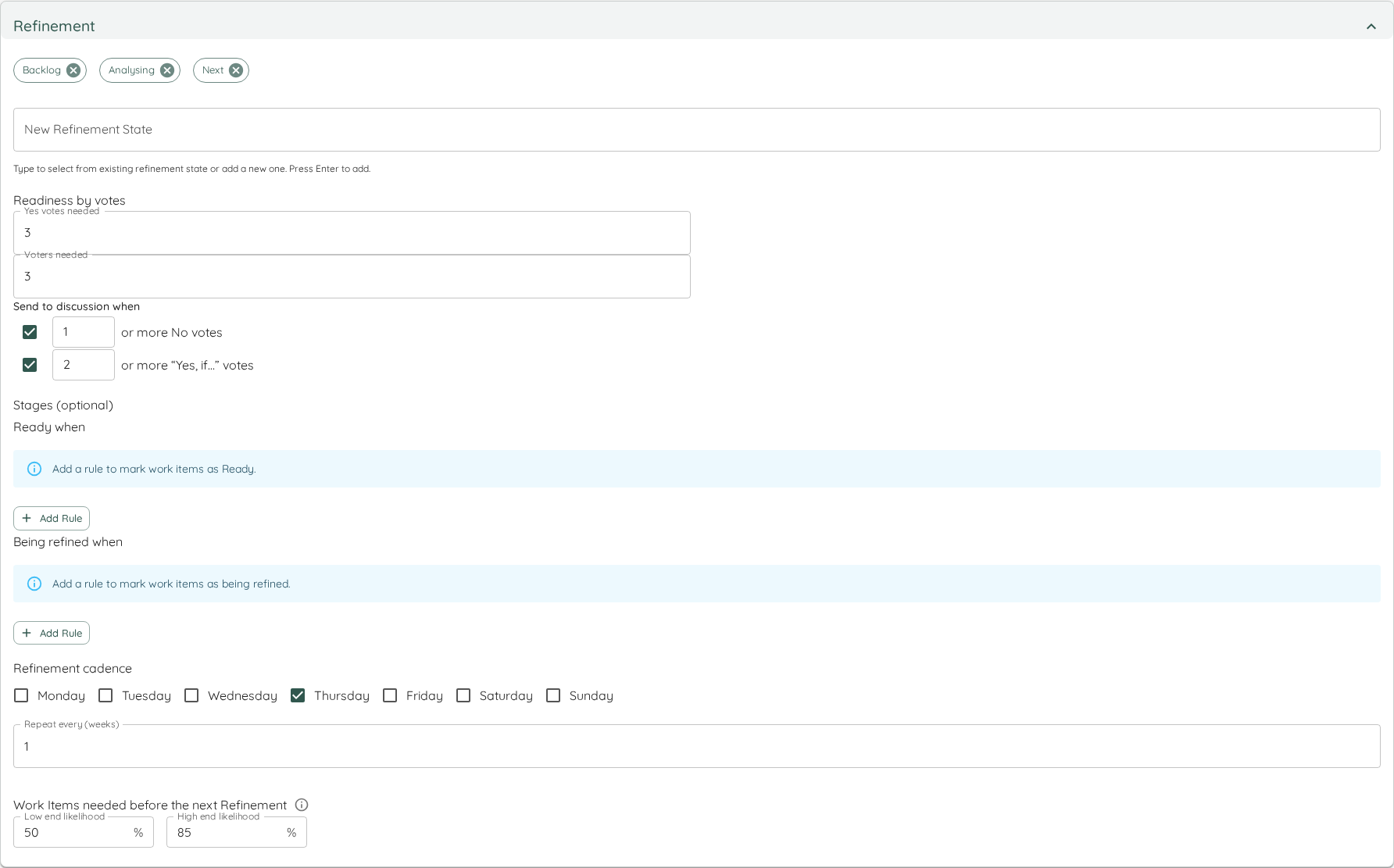
Everything in this section is part of every Lighthouse installation; none of it needs a license. It is saved with the rest of the Team’s settings.
Refinement settings only decide what the Refinement tab shows. They do not change Cycle Time, Throughput, WIP, forecasts or any other metric.
Refinement States
Refinement states tell Lighthouse which of your states hold work your team is still refining: clarifying, slicing or sizing it before anybody starts on it. Lighthouse lists the Work Items in those states on the Refinement tab.
Add a state by typing in the New Refinement State field and picking one of the suggestions; each chosen state shows as a chip, and the cross on a chip removes it. The suggestions are your Team’s To Do and Doing states, including the names of your state mappings; anything else cannot be added. With no chips left, the Team has no refinement states and its Refinement tab switches off.
If you later take a chosen state out of To Do and Doing (or rename the state mapping it came from), it is removed from the refinement states when you save. Add the new name again if you still want it.
Pick the states your team refines from — typically the top of the backlog such as Backlog, Next or Analysing.
Readiness by Votes
Team members vote on every Work Item in refinement: Yes, Yes, if… or No to “is this doable within our SLE?”. These fields decide when the votes make a Work Item Ready:
- Yes votes needed (default 3): how many Yes votes a Work Item needs. A “Yes, if…” counts as a Yes. At least one is needed (“At least one Yes vote is needed”).
- Voters needed (default 3): how many people must have voted at all, whatever they answered. It cannot be lower than the Yes votes needed (“Voters needed cannot be fewer than Yes votes needed”).
Under Send to discussion when, two rules send a Work Item to discussion instead. Each has its own checkbox and threshold, either one is enough, and both are on by default:
- 1 or more No votes: a single doubt is worth talking about.
- 2 or more “Yes, if…” votes: several conditions usually mean the Work Item is not clear yet.
A Work Item that meets a discussion rule shows Needs discussion, however many Yes votes it has. A rule that is on needs a threshold of at least 1 (“A discussion rule needs at least 1 vote”); untick it to switch it off. Ticking it again brings back the threshold it had.
Without stages, the Work Items the votes make Ready are the Team’s ready count on the Refinement tab.
Stages (optional)
If your work tracking system already tells you how far refinement has got (a field, a tag or a state that means ready), you can let Lighthouse read the stage from there instead of from the votes. Two optional rules, built with the same rule editor as Exclude Items for Throughput, decide a Work Item’s stage:
- Ready when — the Work Items in refinement that are Ready.
- Being refined when — the Work Items in refinement that are being worked on.
Anything neither rule matches is Waiting. When both rules match a Work Item, Ready wins. The rules are only offered once the Team has been saved, because the fields they can look at come from the Team’s work tracking system connection.
With at least one stage rule:
- The Refinement tab shows a Stage column and a breakdown such as “2 Ready · 3 Being refined · 4 Waiting”.
- The ready count is the Work Items whose stage is Ready. Votes are still taken, but they never make a Work Item Ready, and they never hold back one whose stage is Ready.
- When somebody has voted and the votes disagree with the stage, the row shows a warning, so the Team can see which of the two is out of date.
Remove every condition from both rules to go back to readiness by votes.
Refinement Cadence
Set the days the Team refines on, in the same way as a recurring blackout rule: tick the weekdays, and set Repeat every (weeks) (1 for every week, up to 52). Above 1, a Starting week is needed: pick any day in a week the Team refines in, and the weeks are counted from there.
The Refinement tab then shows when the next Refinement is and how many Work Items to refine before it. A Refinement that falls on a blackout day is skipped. With no weekday ticked, the Team has no cadence, and the tab shows “No Refinement cadence” instead of the number.
Work Items Needed Before the Next Refinement
The Refinement tab compares the ready Work Items with a range: how many Work Items the Team is likely to pull between the next Refinement and the one after, from a How Many forecast over that cycle with the Team’s Throughput. These two fields set where the ends of that range are read:
- Low end likelihood (default 50%): the Team pulls at least the low end with (100 − this)% likelihood. At the default, 50%, the low end is the median of the forecast.
- High end likelihood (default 85%): the Team pulls more than the high end with only (100 − this)% likelihood. At the default that is 15%.
Both ends move the same way: the higher the value, the more Work Items that end of the range asks for. The “#” column and the “enough for the next Refinement” line on the tab count up to the high end.
Each likelihood is between 50% and 95% (“Between 50% and 95%.”), and the low end must stay below the high end, for example “The low end (90%) must be below the high end (85%).” Nothing is saved while either message shows. The info icon next to the heading explains the range with your current values.
Keep the defaults until you have a reason to change them. Raise the high end if running out of refined work before a Refinement hurts your Team more than refining a little too much; lower it if refined work tends to go stale while it waits.
Cycle Times (Premium)
Alongside the built-in Cycle Time, you can define named cycle times — additional start→end measurements over your workflow. A “Lead Time” from Backlog to Done, or an “Analysis to Done” from your analysis state onwards, can be tracked side by side.
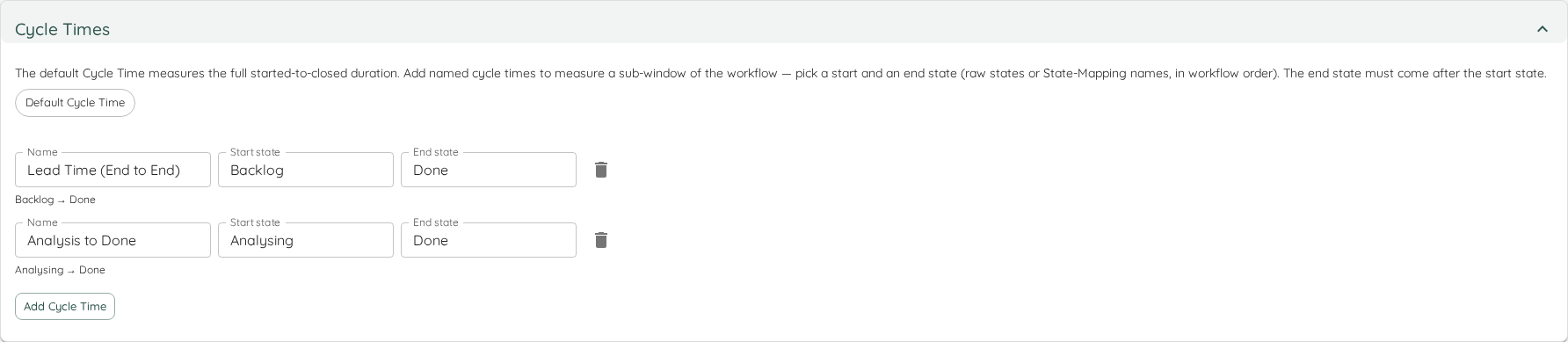
Add a definition with a name, a start state and an end state (both pick from your configured states or state mappings, in workflow order). The end state must come after the start state. Each named cycle time then appears as a choice on the Cycle Time Scatterplot and the Cumulative Time per State chart.
If you later remove or reorder a state that a definition references, the definition is kept but marked invalid (shown disabled with a hint) until you fix its boundaries — your other definitions and charts are unaffected.
Estimation
Chose an additional field that represents the estimation (if you have any). Additionally you can define the unit, for example Story Points, Ideal Days, T-Shirt Size, or whatever you use. If an estimation is configured, an additional chart will be rendered, that compares the Estimates with the Cycle Time.
The assumption is that your estimate is numerical. However, if you have categorical values (like T-Shirt Sizes), you can specify the categories and drag them in order from lowest to highest.
Connection default
On Jira, Azure DevOps and CSV connections the Estimation can follow the connection’s Estimation default. The first entry reads Connection default (field, unit), with the unit only when the default has one, for example Connection default (Story Points, Points). Following takes the whole estimation with it: the field, the unit, and the categories when the values are categories. Pick another entry, None included, to set the Team’s own.
A change to the connection’s Estimation default does not update the Team. Its pages show the new estimation the next time they load.

Advanced Configuration
There are a few options that are optional. This means that they have an impact, but you can save a team without bothering.
Parent Override Field
By default, Lighthouse uses the native parent-child relationships from your work tracking system to determine which Work Items belong to which Features.
If you need to override this behavior (for example, to group Work Items under a custom field instead of the native parent link), you can select a Parent Override Field. This field must be defined as an Additional Field on your Work Tracking System connection first.
Go to Settings > Connections to define Additional Fields, then return here to select the appropriate field for parent override.
Connection default
If the connection holds a Parent Override Field for Teams, the first entry in the list reads Connection default (field), with Set on the Jira connection (or the Azure DevOps connection) underneath. Leave it selected and the Team follows the connection, so a change to the connection’s default changes this Team too. Pick any other entry, None included, to set the Team’s own field. The entry is offered on Jira and Azure DevOps connections only.
See Defaults for Teams and Portfolios for what the connection asks when its default changes.
Which work tracking systems read this setting
| Work Tracking System | Parent Override Field |
|---|---|
| Jira | Read. The Additional Field may name a field, or an issue link type — see below. |
| Azure DevOps | Read. The field’s value places the Work Item when it has one; where it is empty, the native parent link still applies. |
| Linear | Not read. A Work Item’s Feature is always the Linear project it sits in. |
| CSV | Not read. The parent comes from the column named on the connection — see Parent Reference Id Column. |
| ServiceNow | Not read. ServiceNow work is read at Team level only, so there is no Feature grouping for the setting to redirect. |
The selector is offered on every Team whatever its connection, and on Linear, CSV and ServiceNow a selection is saved and then quietly ignored. This is long-standing behaviour rather than something a recent change broke — if you picked a field on one of those and the grouping never moved, that is the reason.
Naming an issue link type on a Jira connection
On a Jira connection the Field Reference of the Additional Field you pick here may name an issue link type instead of a field. Lighthouse matches the reference against the connection’s fields first, and only asks Jira for its link types when no field answers to it.
A link type shows you three phrases — its own name, and the sentence a link reads as from each end. Type one you actually see in your Jira; capitalisation is ignored. Which one you type decides which end of the links is read. For a link type whose two ends read Caused by and Results in:
Caused by, the phrase a Work Item reads towards its Feature, reads only that end. Use it when the same link type also joins each Feature to the level above: a Feature then holds the link up to its own parent and the links down to its Work Items at once, and only the phrase pointing up tells them apart.Results in, the other end’s phrase, reads the opposite way round and would place each Feature under its Work Items.- The type’s own name, or a phrase both ends share (such as relates to), reads both ends. That is enough for a single level, and it is what to type when you do not know which end is which.
Jira writes a link once and offers it from both ends, so it does not matter which issue a link was created on. With Caused by typed, these two set-ups are the same set-up as far as this setting is concerned:
- The Work Item names its Feature.
LH-101carries a link reading Caused byLH-42.LH-101is placed underLH-42. - The Feature names its Work Items.
LH-42carries links reading Results inLH-101and Results inLH-102. Both Work Items are placed underLH-42, because each of them sees the other end of the very same link.
A link type holds no value of its own, so once the reference resolves to one, the Additional Field shows the key it found on each Work Item instead. That is the quickest way to check the setting is reading what you expected without opening Jira.
When a Work Item’s links name more than one issue
A Work Item hangs under one Feature, so when its links of that type name two or more different issues, Lighthouse decides between them the same way on every refresh:
- Only Features count. Every issue that is not a Feature in one of your Portfolios is set aside first. An incident, a risk or any other issue the same link type happens to join is never taken as the parent.
- One Feature left: the Work Item is placed under it.
- Several Features left: the oldest link wins, the link made first according to the Work Item’s history in Jira. A link whose date Jira’s history does not show loses to one whose date it shows. When that does not decide, the Feature created first wins, and after that the lowest key, compared character by character (so
PAY-100comes beforePAY-99). - No Feature left: the Work Item is not placed by its links. It keeps the parent Jira itself gives it, if it has one.
Every refresh that had to decide writes a warning listing what it did, for example:
Team "Payments" placed 1 record whose links name more than one issue: PAY-420 under PAY-88 (oldest link, 2026-03-04; set aside PAY-91, 2026-06-17)
The day is the UTC day the link was made. Settings > System Info shows, in the refresh history, the most Work Items one refresh placed this way and the most it could not place. Both figures appear only when there was something to count. See Refresh History.
A link is dated from the Work Item’s own history. When the issue at the other end of a link was moved to another project or renamed, the history names it by its old key, so that link counts as undated. When Jira hands over only part of a long history, none of the Work Item’s links are dated, because the missing part could have removed and re-added any of them.
When the Features picked are consistently the ones above where you expected, or the issues set aside are exactly the ones with children of their own, the phrase you typed is reading the links down to the children as well. Type the phrase that points up instead.
If two different link types both answer to the phrase you typed, Lighthouse resolves neither, for the same reason. Pick a phrase that belongs to only one of them.