Metrics show how a Team or Portfolio is doing right now. A report keeps a view of those metrics you want to come back to, and to show to others: for example, how flow has changed since a coach joined or since the Team started an experiment.
Every Team and every Portfolio has a Reports tab, between Metrics and Settings. Each report has a Type, which decides what it shows and how it is created. The available types are:
- Then & Now: compares a frozen window from the past with the most recent days, metric by metric. It answers “did our flow change since…?”
More types will be added over time. Everything on this page applies to all of them.
- The Reports Tab
- Creating a Report
- Editing a Report
- Deleting a Report
- Who Can Do What
- Reports on the Overview
- Community and Premium
The Reports Tab
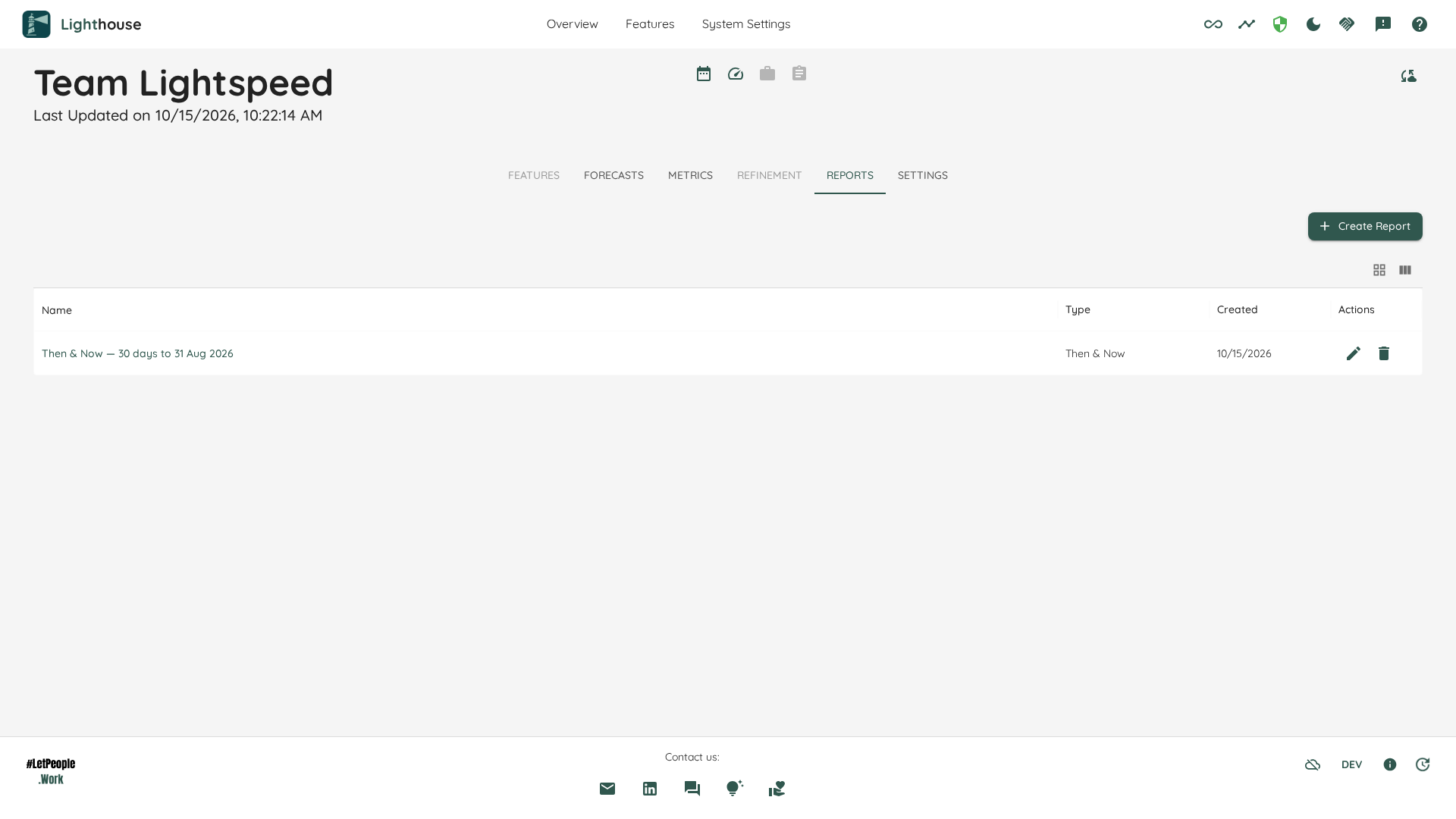
The tab lists the reports of this Team or Portfolio in a table with the columns Name, Type and Created. Click a name to open the report. Everyone who can see the Team or Portfolio can open the tab and read its reports.
When there are no reports yet, the tab says so. If you can edit the Team or Portfolio, it offers Create Report. Otherwise it tells you that a Team Admin (or Portfolio Admin) can create one.
Creating a Report
Click Create Report above the list. A wizard opens, and its first step is Type: choose the kind of report you want. The steps after that belong to the Type you chose. For a Then & Now report, see Creating a Then & Now Report.
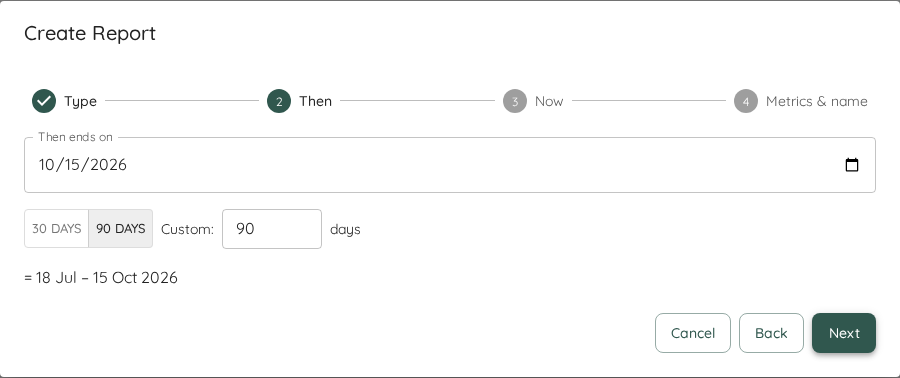
When you click Create on the last step, the new report opens. If it could not be created, the wizard says so and keeps everything you entered, so you can try again.
Editing a Report
Open the report and click Edit report next to its name, or click the ✏️ icon in its row on the Reports tab. The same wizard opens, in edit mode. Some choices cannot be changed once a report exists, for example the Type. They are shown, but locked. Click Save on the last step.
If someone else changed the report while you were editing it, Lighthouse does not overwrite their change. It tells you to reload so you can see what they changed.
Deleting a Report
Click Delete next to the report’s name, or the 🗑️ icon in its row on the Reports tab, and confirm. Deleting a report cannot be undone.
A report belongs to its Team or Portfolio. When you delete a Team or a Portfolio, its reports are deleted with it. The confirmation dialog tells you how many reports go too.
Who Can Do What
| Can do it | |
|---|---|
| Read the Reports tab and open a report | Everyone who can see the Team or Portfolio |
| Create, edit and delete reports | System Admins, and the Team Admins or Portfolio Admins of that Team or Portfolio |
Without role-based access control, everyone can create, edit and delete reports.
Reports on the Overview
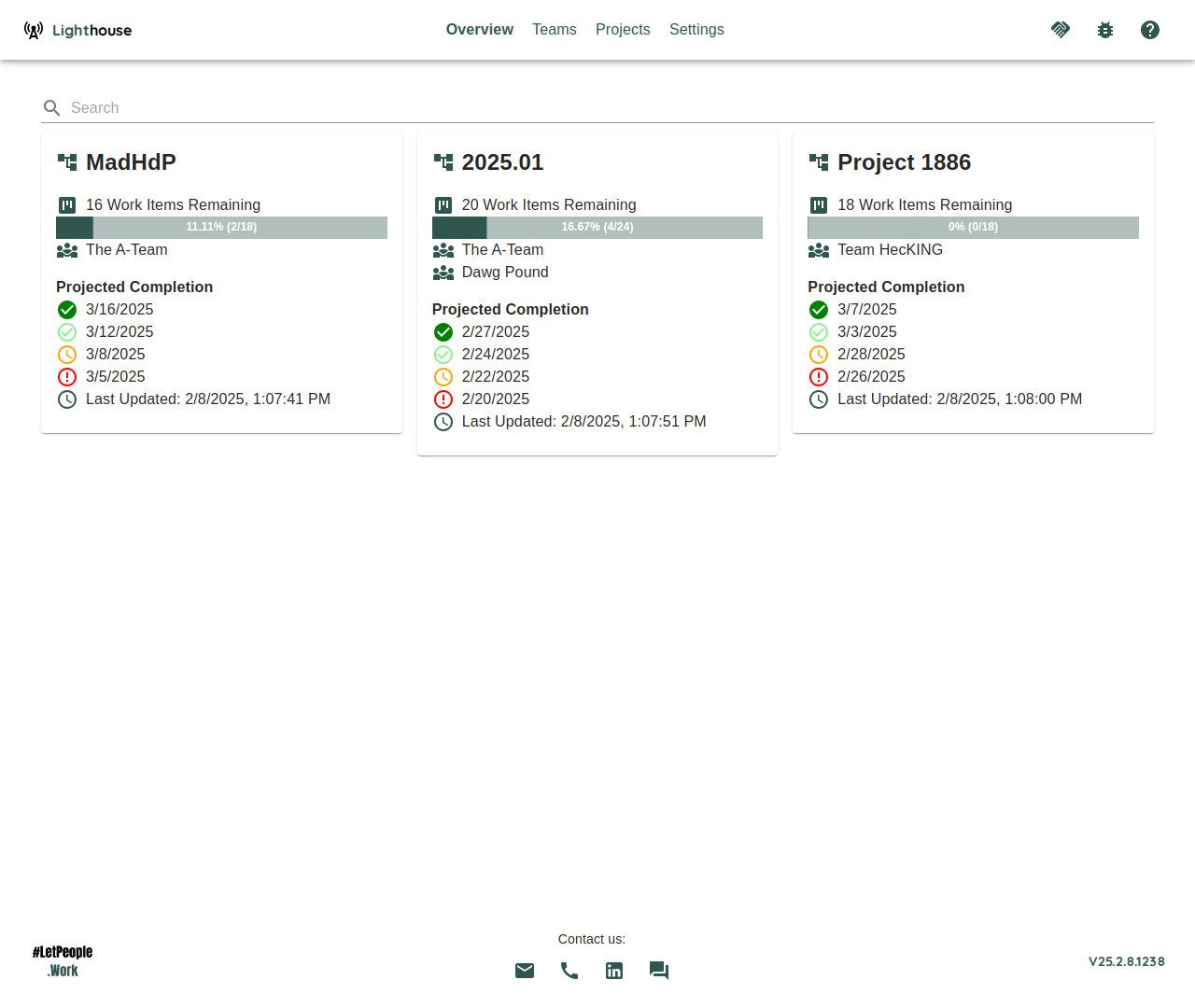
The Teams and Portfolios tables on the Overview have a Reports column. It shows each Team’s or Portfolio’s reports by name, at most two of them, sorted A to Z as on the Reports tab. Click a name to open that report. If there are more, a +N more link under them opens the Reports tab with the full list. A Team or Portfolio without reports shows No Reports.
While the reports are loading, the cell shows a small spinner. If they cannot be loaded, it says Couldn’t load Reports, rather than No Reports. You can hide the column through the table’s column menu.
Community and Premium
Community includes one report of each Type per Team and per Portfolio: one Then & Now report for each Team and each Portfolio. With Premium, there is no limit.
Once a Team or Portfolio has its report of a Type, Create Report is disabled, and the message under it says what to do: “Community includes 1 Then & Now report per Team. Delete it, or use Premium for unlimited reports.”
If your licence expires, nothing is deleted. Every report stays readable, and you can still edit and delete it. You can create new reports again once a Team or Portfolio is below the limit.