Configuration
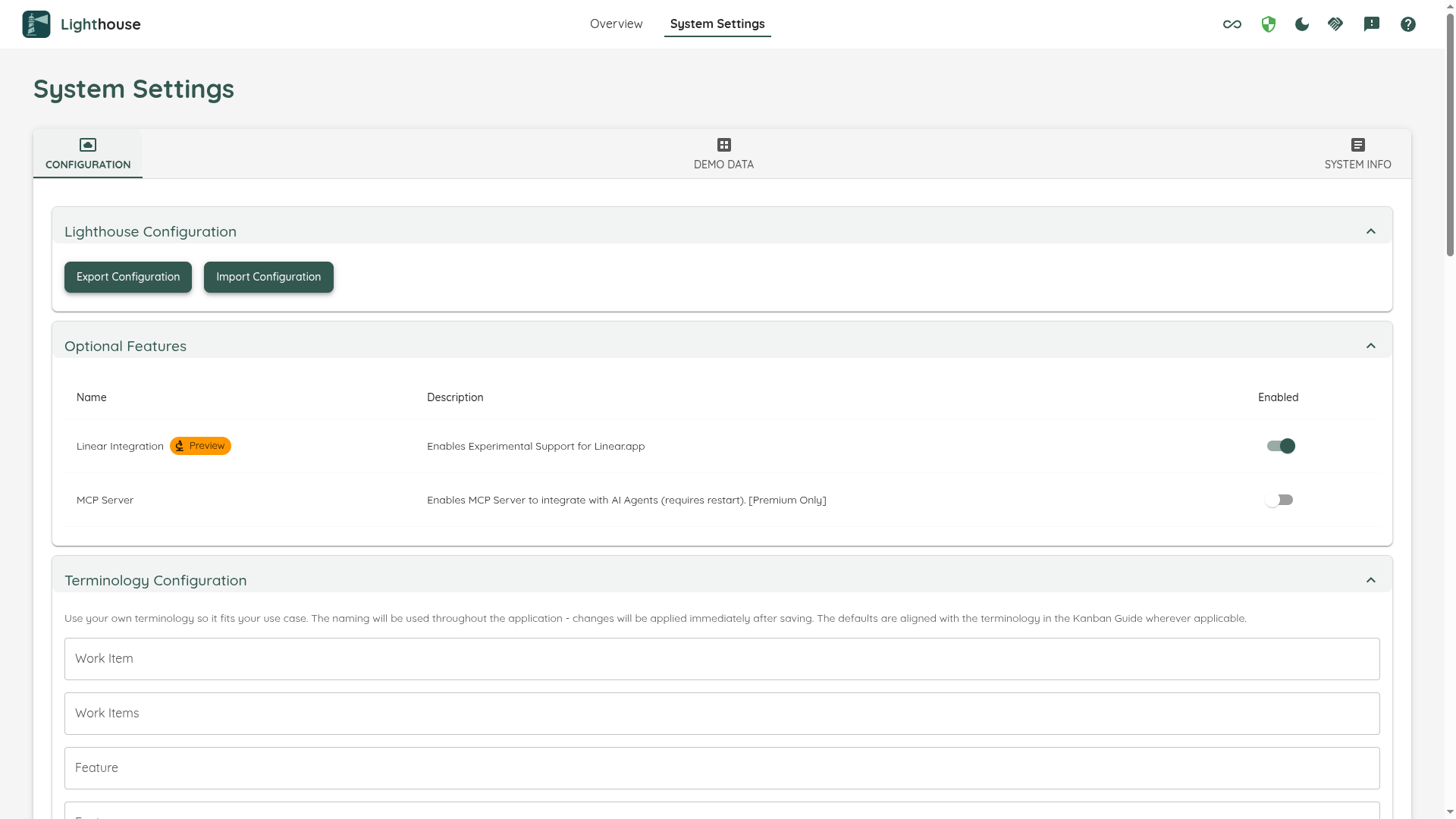
The Configuration Page shows some generally applicable settings that affect the overall Lighthouse behaviour.
Blackout Periods & Recurring Rules
Blackout periods let you mark specific dates or date ranges as non-working days — for example, public holidays, company off-days, or planned shutdowns. Recurring rules cover the days that come back on a schedule — weekends, a fixed no-meeting Friday, or a sprint-review day every two weeks — without you having to add each occurrence by hand.

Both one-off periods and recurring rules feed the same forecasting and metrics behaviour described below — Lighthouse simply expands each recurring rule into the concrete days it covers and treats them exactly like a manually-entered blackout day.
Lighthouse uses this information in two ways:
- Forecasting: When running Monte Carlo Simulations, days that fall within a blackout period are skipped entirely. The simulation treats those days as if your team did no work, which means they do not count against the forecast duration and are not sampled for throughput. This keeps your forecasts accurate even when the future contains known non-working periods.
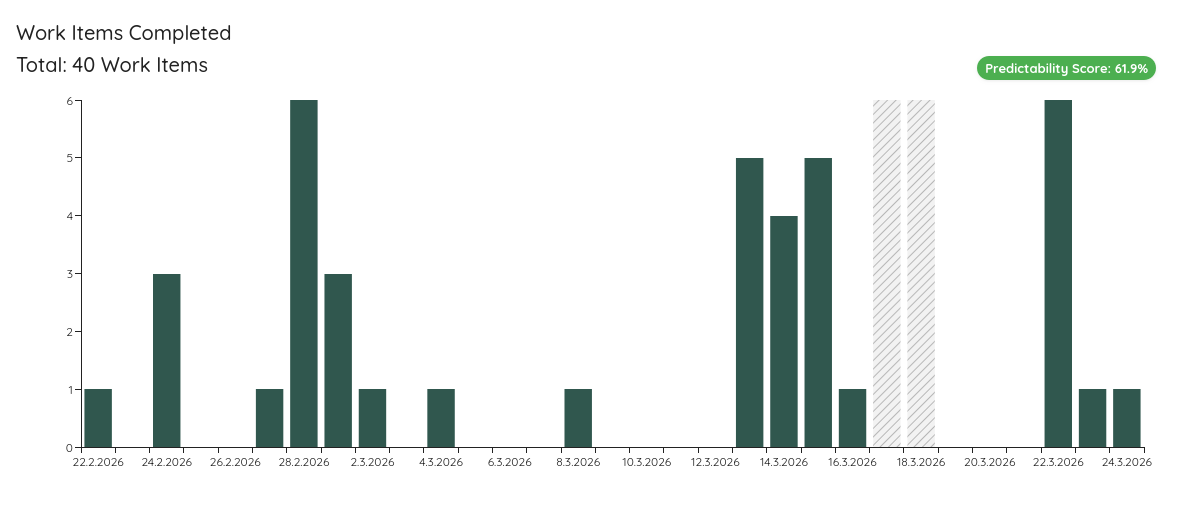
- Metrics charts: Blackout days are visually highlighted with a hatched overlay in run charts, Process Behaviour Charts, and the Cycle Time Scatterplot, so you can immediately see which dips or gaps in your data were expected rather than a sign of a problem.
Adding and Managing Blackout Periods
- Navigate to System Settings → Configuration.
- Locate the Blackout Periods section.
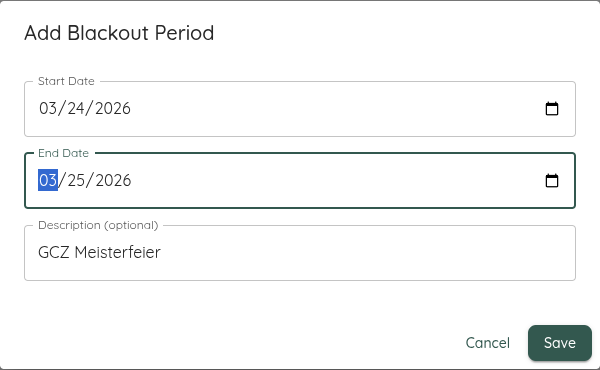
- Click Add Blackout Period and provide:
- Start date — the first day of the blackout.
- End date — the last day of the blackout (can be the same as the start date for a single day).
- Description — a short label such as “Christmas” or “Bank Holiday”.
- Click Save to confirm. The period will take effect immediately for new forecasts and metric views.
You can add multiple blackout periods, edit existing ones, or delete them at any time. Changes apply globally across all teams and portfolios.
Blackout periods are a global configuration and apply to every team and portfolio in your Lighthouse instance.
Recurring Blackout Rules (Premium)
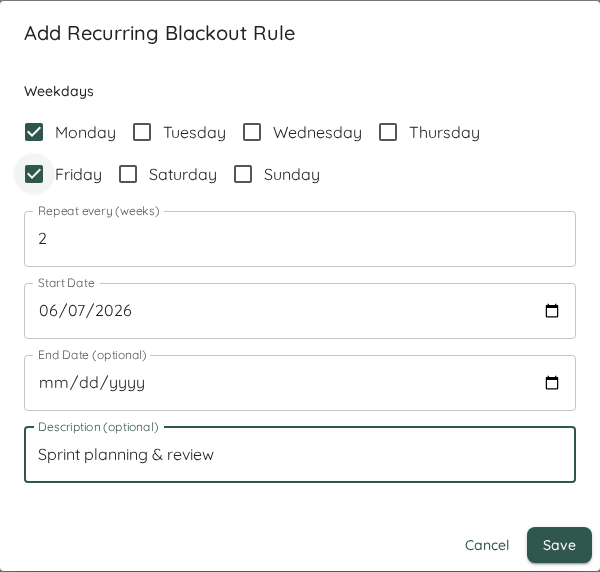
When a non-working day repeats on a schedule, add a Recurring Rule instead of entering each date individually. Click Add Recurring Rule and define:
- Weekdays — one or more days of the week the rule applies to (for example Saturday and Sunday for weekends, or just Friday).
- Repeat every (weeks) — the cadence. Use
1for every week,2for every other week, and so on. The interval is counted from the start date. - Start date — the first date from which the rule is active.
- End date (optional) — leave it empty for an open-ended rule that keeps applying indefinitely, or set a date to stop the recurrence.
- Description — a short label such as “Weekends” or “Sprint Review”.
Recurring rules and one-off periods are listed together in the same section, each with its own schedule summary. Edit or delete them at any time; the change takes effect immediately for new forecasts and metric views.
Use a recurring rule for weekends or any regularly repeating closure, and reserve one-off periods for exceptions such as a single public holiday. This keeps the list short and your intent obvious.
Managing blackout periods and recurring rules requires a Premium license. Existing entries remain active for forecasting and metrics even if a license lapses — only the ability to add, edit, or delete them is gated.
Behaviour Settings
Some behaviour does not make sense to have on in every situation. And occasionally some new features will be deployed with the latest version of Lighthouse that we deem not ready for general use. Both live in Behaviour Settings: one table of instance-wide switches, each with its own row, that you can selectively enable or disable.
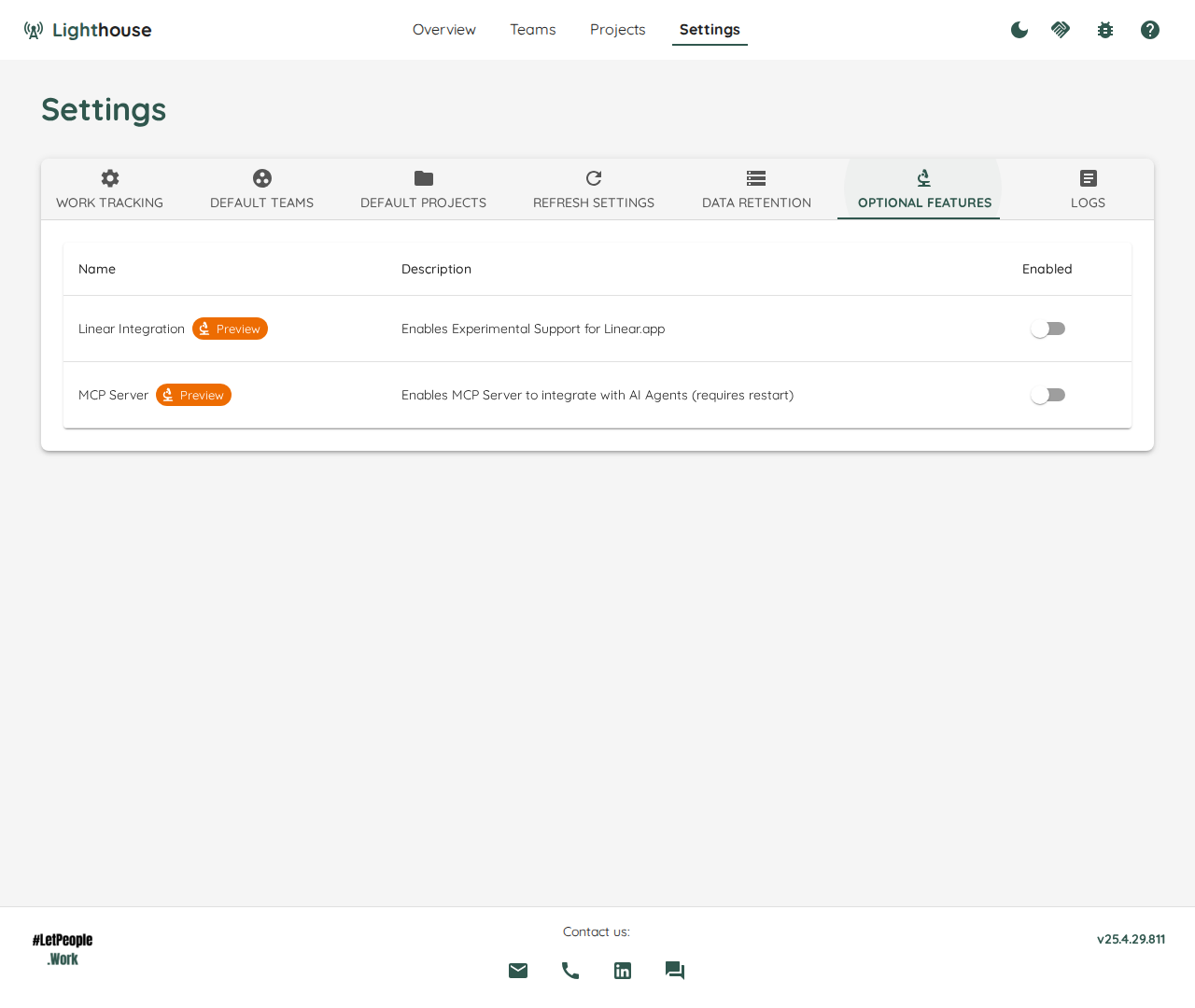
Eventually, the Features in preview will be integrated into the regular functionality, and the preview flag will be removed. In rare cases, a preview feature might get removed.
While preview features should be relatively stable, it can be that they will not work perfectly yet. If you enable them and encounter issues, please let us know about it. We’re looking forward to your feedback!
The rows read in your own words. If you renamed Feature under Terminology Configuration, a row that talks about your Features says your word for them instead of ours.
Faster Updates
With Faster Updates off, every update asks your work tracking system for the full details of every Work Item it finds, including the ones nobody has touched in weeks. On a large query that is most of the time an update spends, and most of the load Lighthouse puts on your tracker.
With it on, an update runs in two steps instead of one: it first asks for nothing but the identity of each Work Item and the date the tracker says it last changed, then downloads the full details only for the ones whose date moved.
- Nothing about your data changes. The whole query is still read on every update, so a Work Item that leaves the query still disappears from Lighthouse on the very next update, exactly as before.
- It applies to Jira Cloud, Jira Data Center and Azure DevOps today. ServiceNow, Linear and CSV keep running the update they always have, whether the toggle is on or not.
- A setting that changes what an update asks for costs you one full update. Change the query, the Work Item types, the states, the state mapping, the Done cutoff or the additional fields, and the next update downloads everything again — the Work Items you already have were read under the old settings, so they cannot be trusted to still be right. The update after that is fast again.
- Editing a query no longer throws away what Lighthouse already stored — and this holds whether the toggle is on or off. Before, changing anything about how a team or portfolio is fetched discarded its Work Items along with the state transitions recorded for them. Now only pointing a team or portfolio at a different work tracking connection does that, because that is the one edit where the same ID genuinely means a different Work Item.
- The toggle takes effect on the next update. No restart.
- What each update did is in the log:
Update completed | Team 'X' | mode=delta | scanned=250 | fetched=3 | ….scannedis how much of the query was read,fetchedhow much was actually downloaded. Turn the toggle off and the same line readsmode=fullwith the two numbers equal — which is how you see for yourself what it is saving you.
Faster Updates is on by default on a new instance. An instance that upgrades keeps the answer it already gave — if you switched it off, it stays off — and you can switch it off at any time, which takes effect on the next update.
Feature Order (Premium)
By default, Lighthouse forecasts your Features in the order your work tracking system gives them — the rank or backlog order they already carry there. Every refresh re-reads that order, so a rank someone changes in Azure DevOps, Jira, or Linear re-sequences your forecast without anyone on your team deciding it. On connectors that have no meaningful rank at all, such as ServiceNow, the sequence was never yours to begin with.
Turn Let Lighthouse own the order of your Features on and Lighthouse takes ownership instead.
- Nothing moves when you turn it on. Lighthouse records the order you are already looking at, exactly as it stands. The list is identical the instant the switch flips — if it reshuffled, that would be indistinguishable from a bug.
- Refreshes stop re-sequencing it. Your work tracking system keeps updating its own rank, and Lighthouse keeps ignoring it. Only the order it recorded decides what the forecast draws from.
- The
#column heading changes to Manual, on the Features page and on the Portfolio Feature list, so it is always visible which order you are reading. - Features that arrive later go to the end and stay there until you move them. They are not announced.
Turning it back off
Turning the switch off hands the order straight back to your work tracking system, immediately and without a refresh. The places you chose are kept — turn it on again and they come back, rather than being re-read from the tracker. That makes the switch something you can try on a live instance instead of a decision you have to commit to.
Owning the order requires a Premium license. The Features page itself, and the # column on it, are available on every instance regardless.
Changing who owns the order changes every forecasted date, because the order is what the simulation draws from. Expect the dates on your Portfolios to be recalculated shortly after you flip the switch either way.
If you are enabling Lighthouse features for AI clients, MCP, or automation workflows, continue with AI and Automation. If the target instance requires authentication, create credentials in API Keys.
Terminology Configuration
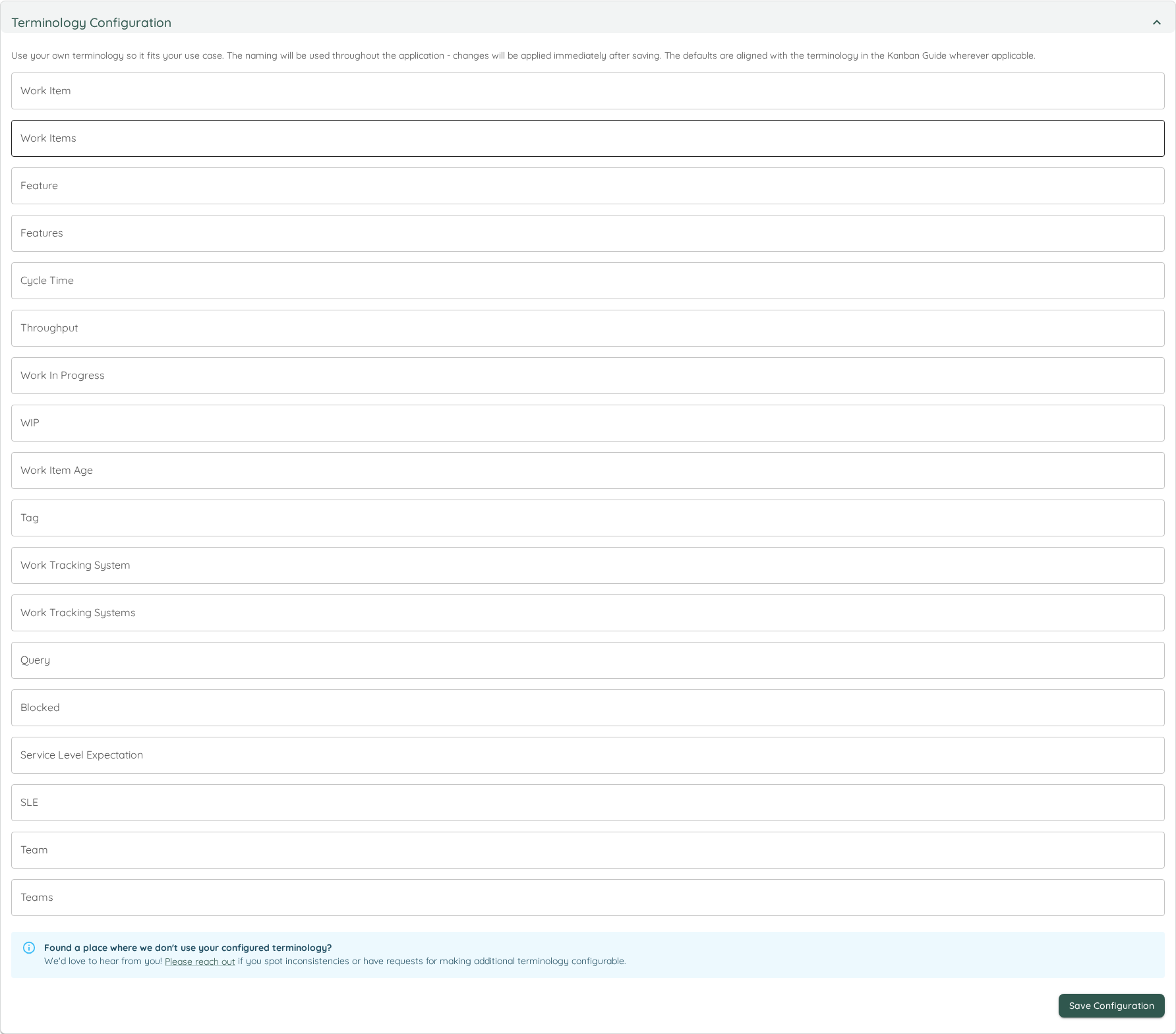
Lighthouse allows you to customize the terminology used throughout the application to better align with your organization’s language and workflow conventions. This feature helps eliminate confusion by ensuring consistent terminology that matches how your team and organization refers to work items and concepts.
Configurable Terms
The terminology configuration allows you to customize the following terms:
| Term Category | Default Value | Description | Example Alternatives |
|---|---|---|---|
| Work Item | Work Item | Individual units of work tracked in your system | Story, Task, Issue, Ticket, Item |
| Work Items | Work Items | Plural form of work item | Stories, Tasks, Issues, Tickets, Items |
| Feature | Feature | Larger units of work that contain multiple work items | Epic, Initiative, Theme, Component |
| Features | Features | Plural form of feature | Epics, Initiatives, Themes, Components |
| Cycle Time | Cycle Time | Time from when work starts until completion | Lead Time, Flow Time, Delivery Time |
| Throughput | Throughput | Number of items completed in a given time period | Velocity, Delivery Rate, Completion Rate |
| Work in Progress | Work in Progress | Items currently being worked on | WIP, In Progress, Active Work |
| WIP | WIP | Abbreviated form of Work in Progress | IP, Active, Current |
| Work Item Age | Work Item Age | How long an item has been in progress | Item Age, Story Age, Task Age |
| Tag | Tag | Labels or categories applied to work items | Label, Category, Type, Keyword |
| Work Tracking System | Work Tracking System | The external system that stores your work items | Issue Tracker, Project Management Tool, ALM Tool |
| Work Tracking Systems | Work Tracking Systems | Plural form of work tracking system | Issue Trackers, Project Management Tools, ALM Tools |
| Query | Query | Search criteria used to find work items | Search, Filter, JQL, WIQL |
| Blocked | Blocked | Items that cannot progress due to impediments | Impediment, Stuck, On Hold, Waiting |
| Service Level Expectation | Service Level Expectation | Expected time for work completion | SLE, Target Time, Goal, Commitment |
| SLE | SLE | Abbreviated form of Service Level Expectation | Target, Goal, Expectation |
| Team | Team | Groups of people working together | Squad, Crew, Group, Department |
| Teams | Teams | Plural form of team | Squads, Crews, Groups, Departments |
How to Configure
- Navigate to System Settings → Configuration
- Locate the Terminology Configuration section
- For each term you want to customize:
- View the current default value and description
- Enter your preferred terminology in the input field
- Leave blank to use the default value
- Click Save to apply your changes
Benefits of Customization
- Consistency: Eliminates confusion from mixed terminology throughout the application
- Familiarity: Use terms that your team already knows and understands
- Alignment: Match existing organizational vocabulary and processes
- Adoption: Reduce the learning curve for new users by using familiar language
- Communication: Improve clarity when discussing metrics and workflows with stakeholders
Best Practices
- Team Alignment: Involve your team in deciding on terminology to ensure everyone understands and agrees with the chosen terms
- Organizational Standards: Align with existing terminology used in your organization’s other tools and processes
- Documentation: Update any team documentation or training materials to reflect the customized terminology
- Consistency: Use the same terms consistently across all teams and portfolios in your Lighthouse instance
Changes to terminology are applied immediately throughout the entire application interface. All existing data and configurations remain unchanged - only the display labels are updated.
Periodic Refresh Settings
One of the main advantages of Lighthouse is the fact that it’s not only offering to run the forecasts on demand, but also continuously. To fine-tune this, you can adjust the several settings:
Refresh Types
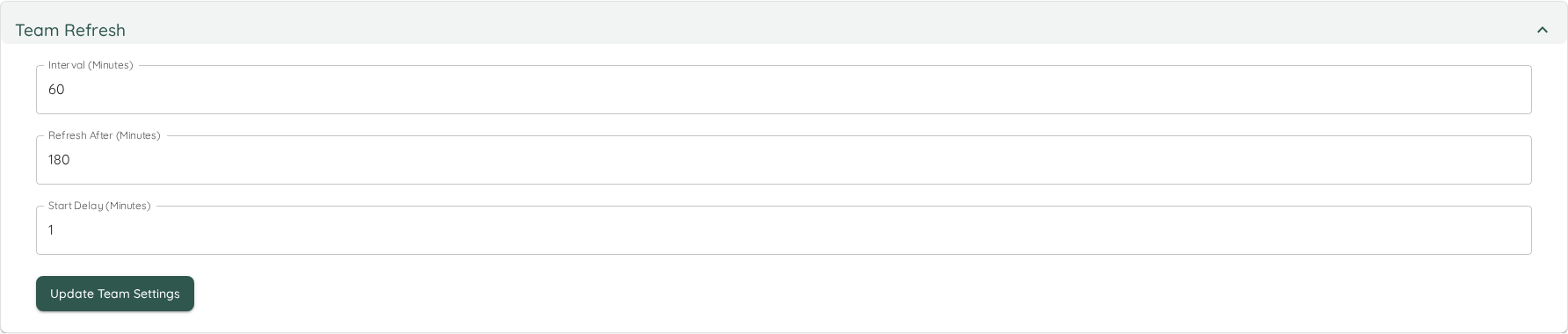
There are two types of refreshes:
- Team
- Feature
The Team refresh fetches all items related to your team, and is equivalent to clicking the update icon on the Team page, while the Feature refresh updates portfolio data and is equivalent to using the refresh icon on the Portfolio page.
Setting Details
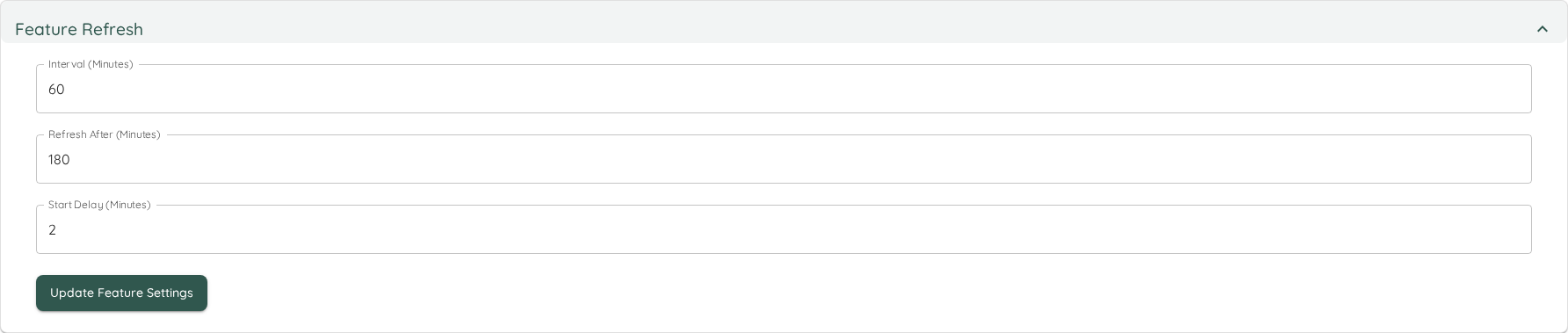
Each refresh type contains three different settings. All settings are specified in minutes. After adjusting the setting, the Update Settings button must be pressed for the changes to become effective.
| Name | Description |
|---|---|
| Interval (Minutes) | The time between checks if the data should be updated. This means, after x minutes Lighthouse will check if the last update was older than what was defined in Refresh After. |
| Refresh After (Minutes) | The time after which a refresh will be triggered if the last one was more than this time ago. |
| Start Delay (Minutes) | The delay before the background task is started when the application starts. This can be useful as you may not want to trigger updates just after startup. |