Once you have created your team, you can see all the details on this page. It’s split into tabs: Features, Forecasts, Metrics, Refinement, Reports and Settings.
In the Features Tab, you can browse through all the features from the various portfolios the team is involved in, and see how many items are left to do for this team in each feature. In the Forecasts Tab, you can run manual forecasts, predict new work items, and check how past forecasts held up. In the Metrics Tab, you can see various charts for Metrics for this team. In the Refinement Tab, you can see how many work items to refine before the next Refinement, and vote on their size. In the Reports Tab, you can keep reports on this team’s flow, such as a Then & Now report that shows whether flow changed since a given day.
You can directly go to the team detail page if you bookmark the specific URL. Even if the team name changes, the URL will stay the same.
General Team Information and Actions
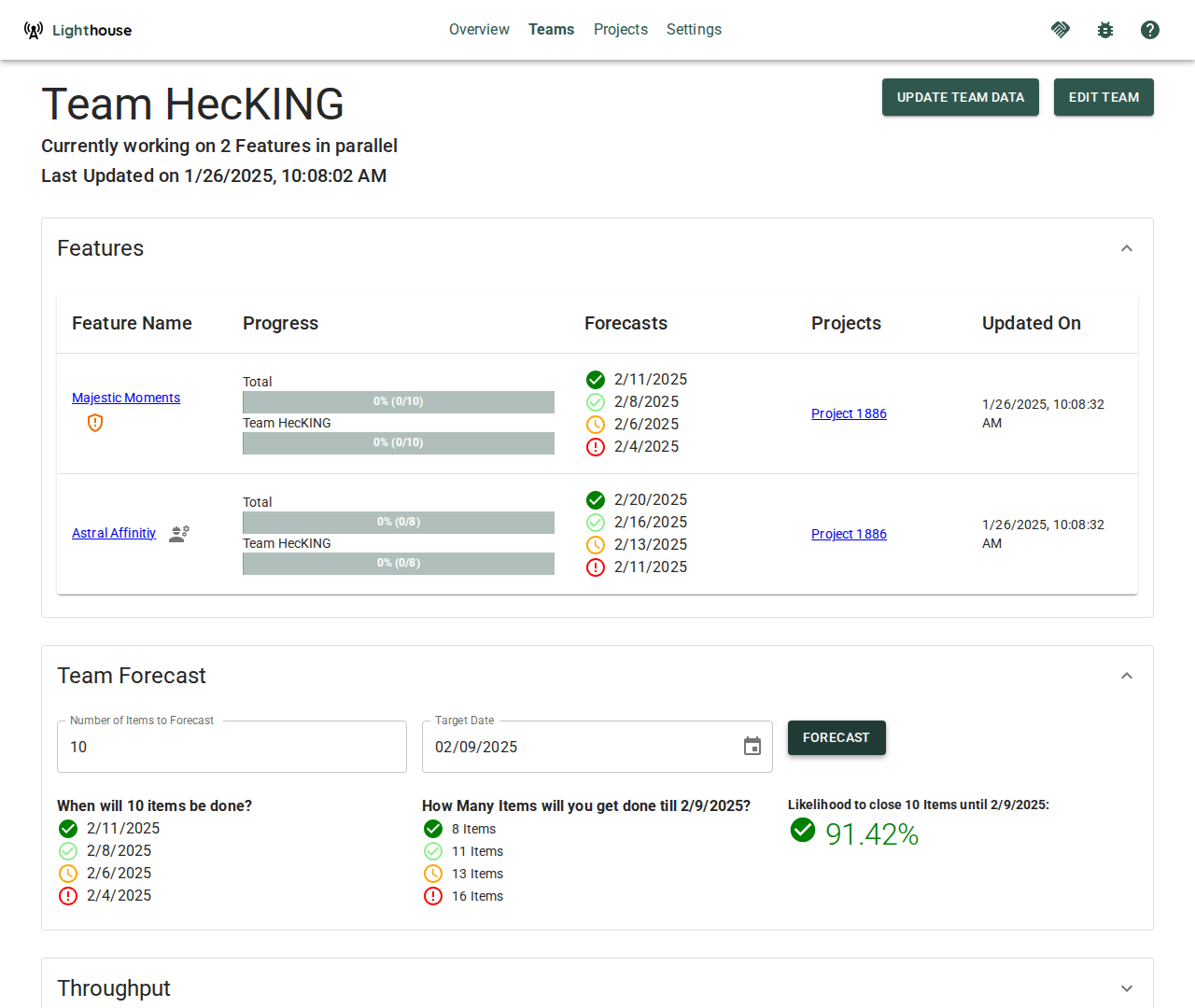
On top you can see general team information, which includes the Team name, an indication if a fixed Throughput is used, and when it was the last time this team was updated.
Update Team Data
While teams are continuously updated, you can trigger an update manually by clicking the update icon in the header. This will update all data related to the team, including the forecasts for any portfolio the team is involved in, as well as the Metrics.
A manual update can be useful if you just made significant changes (for example closed a couple of item for this team) and do not want to wait for the periodic update to kick in.
After you trigger the manual update, the update icon will be disabled while the team is updated. Depending on the load of the server and other operations which might be in progress, it can take a while. While every context and team is different, a team data update should normally not take longer than ~60~ seconds. If it does, please reach out to us via Slack, so we can analyze and propose improvements and adjust Lighthouse to be more performant.
Settings
Team settings are now available in the Settings tab on the Team page. They contain the same settings as the Team Creation.
For frequently used adjustments there is a Quick Settings bar in the header that allows you to change common values (Forecast Throughput Configuration, SLE, System WIP, Portfolio Feature WIP) without leaving the page.
Features
The Features section is the default section. If a team is involved in one (or more) portfolios, all the features where this specific team has work for in their backlog are listed.
For every feature, you can see the following details.
Hide Completed Features
If you have many Features that are already completed, you may not want to show all of them. In such a scenario, you can hide the completed features. The setting is stored for this specific team, so next time you won’t have to toggle it again.
Feature Order
The Features are listed in the order Lighthouse forecasts them — this Team’s slice of an instance-wide sequence, so the Features of Portfolios this Team does not work on sit invisibly in between. The Features page shows the whole sequence.
On an instance where Lighthouse owns the order rather than your Work Tracking System, this list reflects the order you chose, but you cannot change it from here. Move a Feature from the Features page or from the Portfolio it belongs to, and this list follows — there is one order, and a move made anywhere is the move everyone sees. Owning the order is a Premium capability.
Feature Name
The name of the feature. This is also a clickable link, that points to this specific item in your work tracking system.
Parent
The item each Feature hangs under in your work tracking system. The name links to the item; No Parent means the Feature has none.
Three further columns say something about every row:
- Warnings carries one icon per Feature — a green check when there is nothing to say, an amber triangle when there is. Hover it to read every reason at once: a Feature marked done that still has open Work Items, one using the Default Feature Size because it isn’t broken down yet, or a dependency Lighthouse can’t take into account. See Warnings.
- Active Work shows whether this team currently has child items of the Feature in a Doing State.
- Dependencies lists the other Features this one is waiting on, read from your work tracking system. See Dependencies.
Feature Progress
In the progress column, you can see how many items are done and how many are pending for this feature. This is split by the total amount (containing all items that including the ones from other teams working on the same feature) and items that are specifically relevant for the current team.
If a team is working solo on a feature, both bars will show the same numbers. If not, this means at least one other team is involved in this feature.
Feature Forecasts
For each Feature you will see the forecasted completion date. You’ll get four different probabilities, from Certain to Risky.
The completion dates of each feature will take into account all teams that are involved, not just the one you are currently looking at.
Beside them, the Forecasted Start column says when work on each feature is forecast to begin, at the same four probabilities — or the day it actually started, for a feature already under way. See Forecasted Start.
Forecasts
It shows you all things related to forecasting for this specific team.
Manual Forecasts
Based on the team’s throughput, you can run Monte Carlo Simulations to answer two important questions for many teams and organizations.
Both questions will be answered with a forecast, which means you’ll get multiple results that vary in probability, from certain (95% likelihood) to risky (50% likelihood).
When
The first question is: When will ‘x’ items be done? If you have a certain number of items (e.g., remaining for a feature, part of the sprint goal, etc.), you might want to know when you can expect them to be completed. If too few simulated runs finish within five years for a probability, it reads More than 5 years instead of a date (see When a Forecast Reaches Beyond Five Years).
How Many
The second question is: How many items will you get done by a certain date? You might have an important customer visit coming up, or simply want to know what is a sensible number of items to plan for in your next sprint.
Usage
Forecasts done on team-level are on-demand, meaning you have to trigger them as needed. Only forecasts for portfolios will be re-run continuously. This is still useful if you want to quickly check something without setting up a full portfolio. Examples could be:
- How much will fit into the next Sprint (for example as preparation for a Sprint Planning)
- When will this Feature most likely be done?
- Will an additional feature fit for a release without having to move a target date?
New Work Item Predictions
Apart from telling you how many items a team may close, the same forecasting can be applied to the creation of items.
Based on a teams backlog, Lighthouse can predict how many new items will enter the backlog.
This forecast is based on the items creation date, independent of their state. So whenever you create a new item, it will be taken into account.
The forecast looks at a given time frame that you can modify by changing the Start and End Date. Furthermore you can specify which Work Item Types you want to look at, and how far in the future you want to forecast.
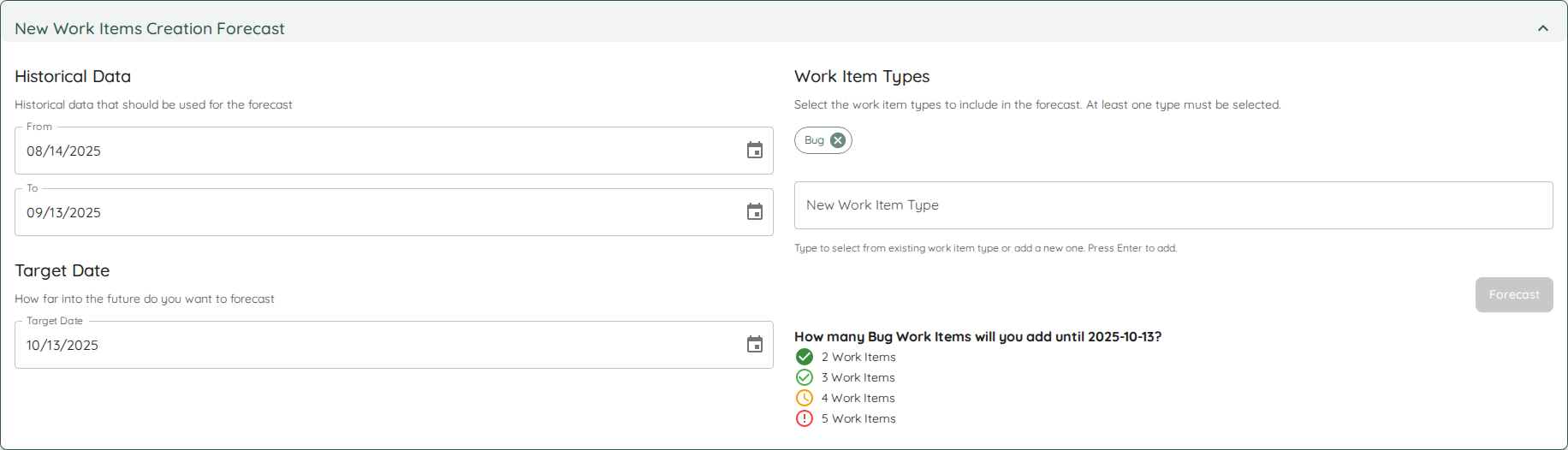
This allows you to forecast a scenario like this one: Based on the last 90 days, how many new bugs can we expect in the next 30 days?
The result will be a probabilistic one, where you get the usual percentiles:
- 95% chance you will get 5 or less
- 85% chance you will get 4 or less
- 70% chance you will get 3 or less
- 50% chance you will get 2 or less
That may help you plan for the not plannable, as you can see that, based on your past, you will will have a good chance of 4 bug items making it into your backlog.
Forecast Backtesting
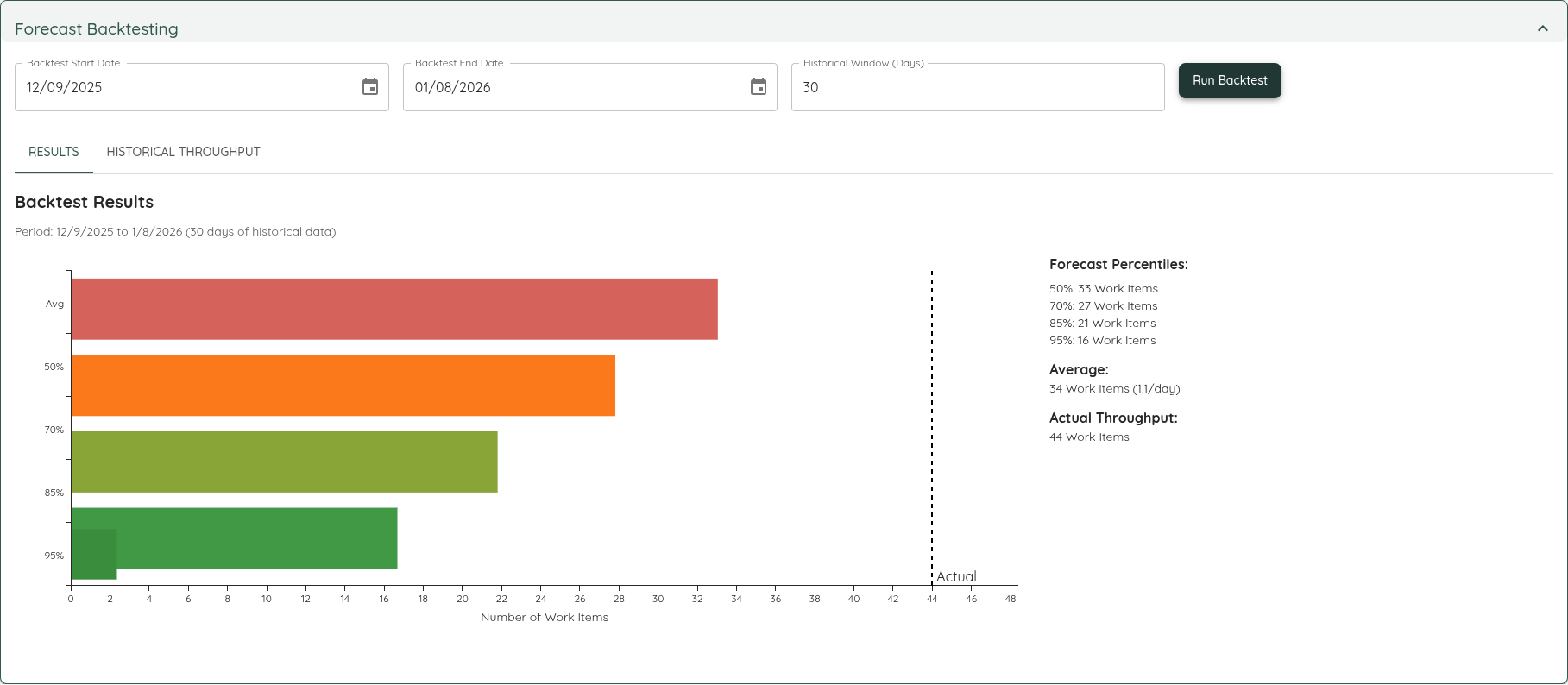
Backtesting allows you to validate how accurate Lighthouse forecasts would have been in the past. This helps build trust in the Monte Carlo Simulation and assess whether your team’s workflow is stable enough for probabilistic forecasting.
How It Works
You select a historical time period by specifying:
- Backtest Start Date: The date from which the forecast should be run (must be at least 14 days in the past)
- Backtest End Date: The end of the period to compare against (must be at least 14 days after the start)
- Historical Window (Days): The number of days of throughput history to use for the simulation
Lighthouse will then run a Monte Carlo Simulation as if it were the start date, using only the historical data available at that time. The result shows:
- The forecasted “How Many” percentiles (50%, 70%, 85%, 95%)
- The forecast if we would have used the average value
- The actual throughput that occurred during that period
This lets you see whether the actual outcome fell within the forecasted range, giving you confidence in future forecasts.
Historical Throughput
The Historical Throughput tab shows the throughput run chart for the historical window used by the backtest, along with its Predictability Score. This helps you understand the input data that drove the simulation.
Forecast Reality Check
A single backtest answers “would this one forecast have held?”. The Forecast Reality Check answers the bigger question: how often do this Team’s forecasts hold, and is its sampling window a good one? Press Run reality check below the backtest inputs. The info icon beside it explains what the check does.
What it checks
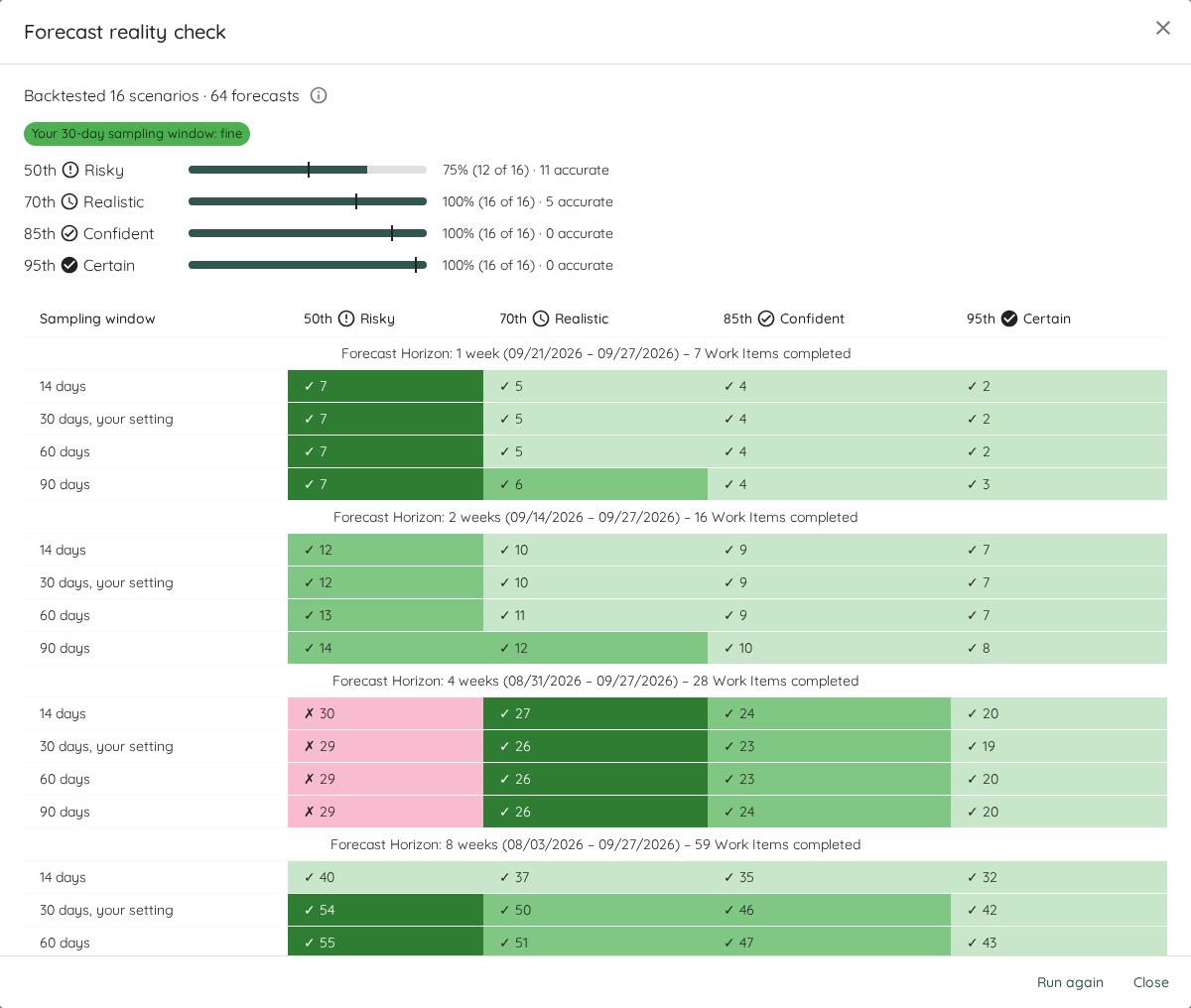
Lighthouse replays many forecasts at once. Each scenario takes a recent period that ends today, forecasts it from one sampling window of the history before that period, and compares the result with the Work Items the Team actually completed.
- Forecast horizons: 1, 2, 4 and 8 weeks.
- Sampling windows: 14, 30, 60 and 90 days, plus your Team’s own Throughput History setting if it is not one of those.
- Confidence levels: every scenario is read at all four levels (50th, 70th, 85th and 95th).
A window that doesn’t have enough history to forecast from (fewer than 5 days with completed Work Items) is left out of every count and marked as such, so the numbers never include a forecast that couldn’t really have been made.
The check is read-only. It changes nothing about your Team, and it doesn’t pick a “best” window: each scenario covers a different real period, so they are evidence to read side by side, not a race to win.
Reading the result
The dialog starts with a summary:
- A headline saying how many scenarios were backtested and how many forecasts that gives. The info icon next to it explains the numbers and credits the method, Nick Brown’s article The Full Monte.
- A badge for your sampling window: fine, did not hold up, or could not be checked. A Team that forecasts from fixed start and end dates has no sampling window, so its badge says the window was not tested. A window holds up when its 95th forecast held in more than half of the checks that could be run on it.
- One row per confidence level, showing how often that level held (for example 94% (15 of 16)) against a tick at the rate it should hold at, and how many of its forecasts were accurate, meaning within 10% of what was completed.
Below the summary, a table shows every scenario: rows are sampling windows grouped by forecast horizon, and columns are the four confidence levels. Each period’s header shows its dates and how many Work Items were actually completed. Each cell shows the forecast with a ✓ (held) or ✗ (missed). Green deepens the closer a forecast landed and red deepens the further it missed. Hover over or focus a cell to see exactly how far off it was.
When to use it
- Before relying on forecasts for a commitment, to see whether this Team’s history makes them trustworthy.
- When deciding whether to change the sampling window: if yours didn’t hold up while others did, it’s worth trying one of those.
- To show someone why a forecast deserves trust, instead of asking them to take the Monte Carlo Simulation on faith.
Refinement
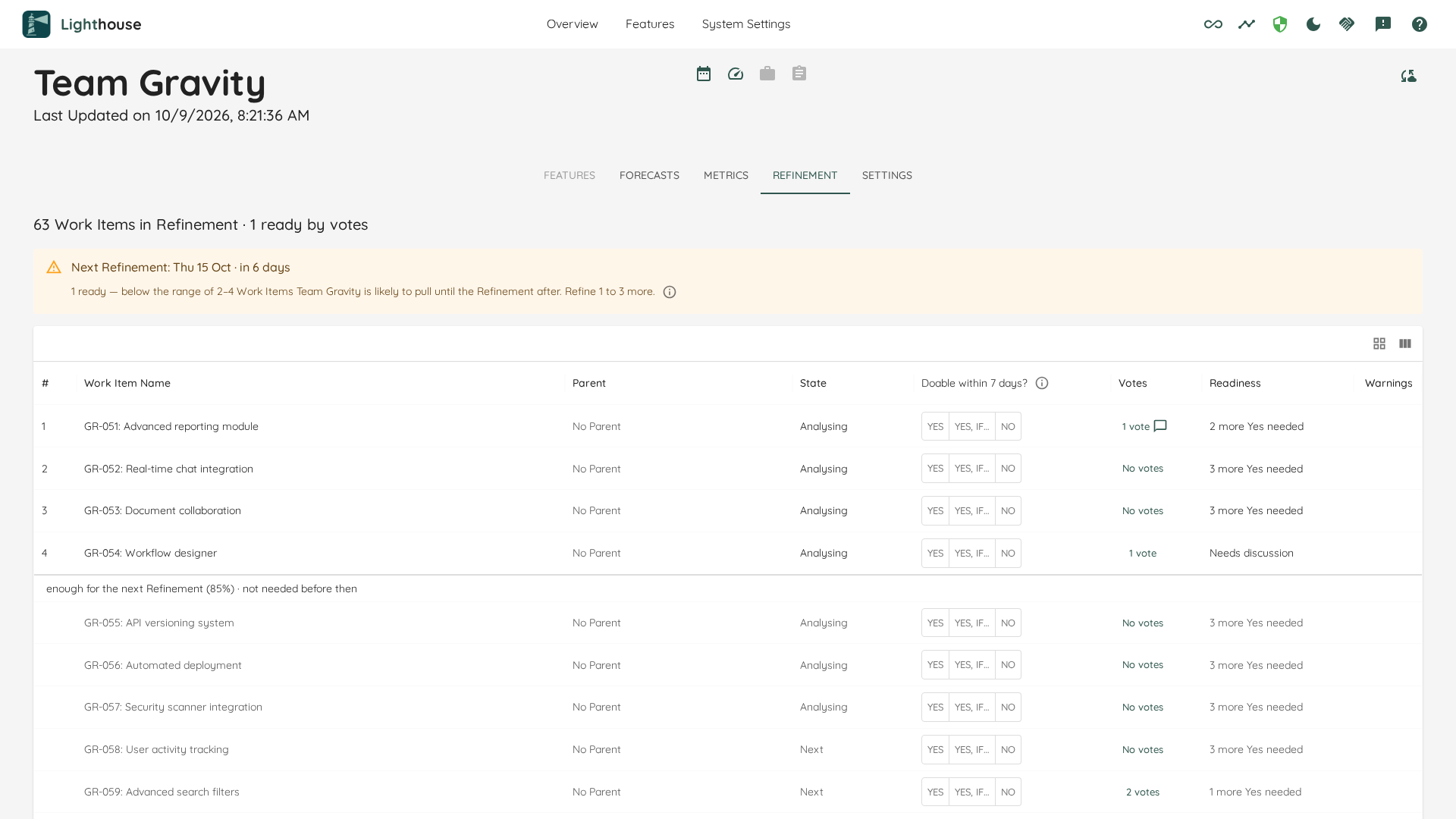
The Refinement tab, between Metrics and Settings, lists the Work Items that are currently in the Team’s refinement states and helps the Team answer two questions before its next Refinement:
- How much should we refine? Enough to last until the Refinement after the next one, and then stop. Lighthouse works that number out from the Team’s own Throughput.
- Is this Work Item small enough? Everybody votes on whether a Work Item is doable within the Team’s SLE, at any time and without a meeting, and enough Yes votes make it Ready.
Everyone who can see the Team can open the tab, vote and comment. Opening it changes nothing.
When the Tab is Switched Off
Until the Team has at least one refinement state, the tab is shown but switched off. Hovering it tells you what to do:
- If you can change the Team’s settings (or roles are not enforced): choose refinement states in Settings → Refinement.
- If you can only read the Team: a Team admin needs to choose refinement states first.
As soon as refinement states are configured and saved, the tab switches on immediately.
When nothing is in the refinement states, the tab says “No Work Items in Refinement states right now” instead of showing an empty table.
The Heading
The heading says how many Work Items are ready. What counts as ready depends on whether the Team has stage rules:
- Without stage rules, the votes decide: the heading reads, for example, “9 Work Items in Refinement · 2 ready by votes”.
- With stage rules, your work tracking system decides: the heading breaks the Work Items down by stage, for example “2 Ready · 3 Being refined · 4 Waiting”. Votes are still taken on every Work Item, but they never make a Work Item Ready, and they never hold back one whose stage is Ready.
On the right of the heading, a Team without a Refinement cadence reads No Refinement cadence. Its info icon tells you how to get one: if you can change the Team’s settings it points you to Settings, otherwise it tells you that a Team admin can set one.
How Many to Refine
Once the Team has a Refinement cadence, a message under the heading says whether the Team has refined enough. Its title names the next Refinement, for example Next Refinement: Thu 8 Oct · in 4 days (“tomorrow” when it is one day away). The next Refinement is always after today: on a Refinement day, the message already looks ahead to the following one.
The message compares the number of ready Work Items with a range: how many Work Items the Team is likely to pull between the next Refinement and the one after it. Whatever the next Refinement leaves ready has to last that long. There are three outcomes:
- Below the range (orange): “3 ready — below the range of 5–8 Work Items Team Gravity is likely to pull until the Refinement after. Refine 2 to 5 more.”
- In the range (green): “6 ready — in the range of 5–8. Nothing more needs refining by then.”
- Above the range (orange as well): “11 ready — above the range of 5–8. Stop refining: nothing more is needed by then.” Having too much ready is as much a reason to act as having too little: refined work that waits goes stale.
When both ends of the range are the same number, the message names that one number instead of a range, for example “Refine 2 more”.
The info icon at the end of the message says where the range comes from, for example: “Based on Team Gravity’s Throughput: a How Many forecast for the 5 working days between the Refinements on Wed 8 Oct and Wed 15 Oct.” It is the same How Many forecast you get on the Forecasts tab:
- It uses the Team’s Throughput: every Work Item the Team finished, not only those that went through refinement, with the same history and throughput filter as the Team’s other forecasts.
- It covers one Refinement cycle: the working days after the next Refinement, up to and including the one after it. A Team that refines every Wednesday gets Thursday to the following Wednesday, whichever day of the week you look; with weekends set up as blackout days, that is 5 working days. A Team that refines on more than one weekday sees the number follow the gap between its next two Refinements. On a Refinement day itself, the cycle runs from today to the next Refinement, and the message says “…likely to pull until the next Refinement”.
- Days in a blackout period are not working days, and a Refinement that falls on a blackout day is skipped: the cycle runs to the next Refinement that actually happens. Weekends only count as non-working days when a blackout rule says so, exactly as in the Team’s other forecasts.
- The low end is the number the Team pulls at least with 50% likelihood, and the Team pulls more than the high end with only 15% likelihood. A Team admin can change both likelihoods.
Work Items the Team pulls before the next Refinement are fine: they leave refinement, the ready count drops, and the number still to refine goes up on its own.
When the Team does not have enough history to forecast yet, the message says so instead (“Not enough data yet — need at least 5 days with completed items to forecast.”).
The range has an upper end on purpose. “Refine 2 to 5 more” is a target to stop at, not permission to build a large ready queue.
The Work Items Needed First
While the message shows a range, a # column in front of the Work Item numbers the rows from 1 up to the high end of the range. A line after the last numbered row reads “enough for the next Refinement (85%) · not needed before then”, and the rows below it are shown muted and without a number. The percentage is the high-end likelihood.
The numbering follows the order the rows are shown in, not the backlog order: if your backlog order is not the order you want to refine in, sort by another column and the first rows as shown are numbered. When fewer Work Items are in refinement than are needed, the line after the last row reads, for example, “All 6 Work Items in Refinement are needed before the next Refinement.”
The Table
The table has the same search, filter and column controls as the other lists in Lighthouse, and these columns:
- # — the rows needed before the next Refinement (see above); only shown while there is a range.
- Work Item Name — the Work Item’s ID and name, linking to it in your work tracking system.
- Parent — the parent Feature or Work Item, if any, or “No Parent”. The name links to that parent in your work tracking system.
- State — the current state of the Work Item.
- Stage — Ready, Being refined or Waiting; only shown when the Team has stage rules.
- Doable within 7 days? — your own vote (see Voting). The header asks the question every vote answers, and its info icon says where the number comes from.
- Votes — how many people have voted, for example “No votes”, “1 vote” or “3 votes”, with a speech-bubble icon when somebody wrote something. Click it to open Votes and comments.
- Readiness (called Votes say when the Team has stage rules) — where the votes stand against the Team’s readiness rules:
- Ready — enough Yes votes from enough voters.
- 2 more Yes needed — not enough Yes votes yet.
- 1 more voter needed — enough Yes votes, but not enough people have voted.
- Needs discussion — enough No or “Yes, if…” votes that the Team should talk about this Work Item.
- Warnings — a warning icon when the row needs attention, and nothing at all on a row that does not. Hover it to read why:
- “Somebody asked a question and has not voted yet.”
- “The stage says Ready, but the votes don’t agree yet.” or “The votes say Ready, but the stage is still Waiting.” (only with stage rules, and only once somebody has voted: no votes means no opinion, so there is nothing to disagree with).
Sort by this column to bring every row with a warning together.
Default sort order: Work Items are ordered by their backlog rank (the order in your work tracking system). Clicking a column header sorts by that column; clicking again reverses the sort. To return to backlog order, clear the sort.
Clicking a row: Rows do not open a detail page. The Work Item name and Parent name are links that open in your work tracking system, the vote buttons cast your vote, and the Votes count opens Votes and comments.
Voting
Each vote answers one question: is this Work Item doable within the Team’s SLE? The question heads the vote column with the Team’s own number of days:
| The Team has | The header asks | Its info icon says |
|---|---|---|
| an SLE of 75% in 7 days | Doable within 7 days? | SLE 75% of work items in 7 days or less |
| no SLE | Doable within 12 days? | No SLE set, based off 85% of historical cycle time |
| no SLE, and nothing finished yet | Doable within our SLE? | No SLE is set and no Work Items have finished yet |
Without an SLE, Lighthouse falls back to the 85th percentile of the Team’s Cycle Time over its throughput history window. Setting an SLE gives every voter a number the Team has agreed on.
Every row has three answers:
- Yes — doable within the SLE. One click records it.
- Yes, if… — doable, but only if something is true first. Clicking it opens a small Yes, if… dialog that asks for the condition (“What has to be true for a Yes?”); Vote stays disabled until you write one. A “Yes, if…” counts as a Yes towards Ready, and the condition shows in Votes and comments.
- No — not doable within the SLE as it stands. One click records it.
Voting is open on every Work Item in refinement, all the time; there is no round to start or close. Your answer stays pressed. Click another answer to change your vote, or click your pressed answer again to take your vote back (its tooltip reads “Click again to take back your vote”). The count, the split and the readiness update at once.
Every vote is visible to everybody, whether they have voted or not: the table shows only the count, and who voted what is one click away in Votes and comments.
Who You Vote As
- With authentication on, your vote is cast under your signed-in account. Lighthouse asks for nothing. If your sign-in is not linked to a person in Lighthouse, the vote is refused with “Your sign-in isn’t linked to a person in Lighthouse, so it can’t vote. Ask an admin to link your account.”
- Without authentication, your first vote (or comment) asks Who is voting? for your name, which is “Kept in this browser only.” Your votes are cast under that name from this browser, and you can change it later in Votes and comments. Names are not checked, so on a shared computer people should vote from their own browser.
Voting, comments and readiness are available to every Lighthouse installation. Votes under a verified account need authentication, which is a Premium feature.
Votes and Comments
Clicking a Work Item’s vote count opens Votes and comments.
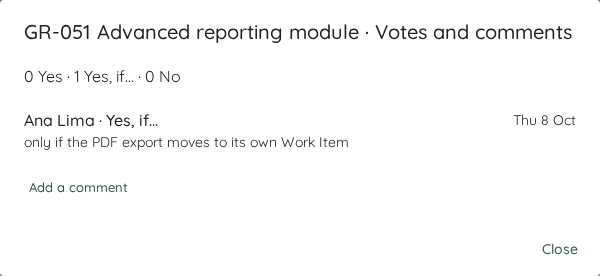
- The split at the top, for example “2 Yes · 1 Yes, if… · 0 No”. Hover or focus a number to see who is behind it.
- What people wrote, oldest first, each with who wrote it and the day: comments, and the condition of every “Yes, if…” vote (shown as “Ana Lima · Yes, if…”). Votes without words are not listed again; the split already shows them. Until somebody writes something, the list reads “No comments yet.”
- Add a comment opens a box to write in; Send posts it. Use it to give the reason for your vote, or to ask something. A comment from somebody who has not voted is marked as an open question, and the row shows a warning, until that person votes.
- Without authentication, the footer shows “Voting as Ana Lima” with Change your name.
Comments cannot be edited or deleted. A comment is at most 2,000 characters.
If a Work Item leaves refinement while you have it open, your vote or comment is refused with “This work item is no longer in refinement.” If many votes or comments come from one browser in a short time, Lighthouse asks you to try again in a minute.