API Keys
API keys let you authenticate non-browser Lighthouse clients such as the CLI, MCP servers, scripts, and other automation workflows. If you are setting up Lighthouse for AI clients or automation, start with AI and Automation and then come back here to create the credential.
Why API Keys Exist
Browser users sign in through the normal Lighthouse authentication flow. Automated clients are different: they need a stable credential they can send on each request without an interactive login.
Typical use cases include:
- Running
lhfrom a terminal or CI pipeline - Starting
@letpeoplework/lighthouse-mcp-stdiofor a local AI client - Hosting
@letpeoplework/lighthouse-mcp-httpas a shared MCP endpoint - Writing custom scripts that call Lighthouse programmatically
Prerequisite: Authentication Must Be Enabled
API keys are only available when Lighthouse authentication is enabled. If authentication is disabled, the API Keys settings page will show an informational message and the New API Key action will remain unavailable.
See Authentication for the full setup.
API keys are intended for non-browser clients. They complement interactive sign-in; they do not replace it.
Creating a New API Key
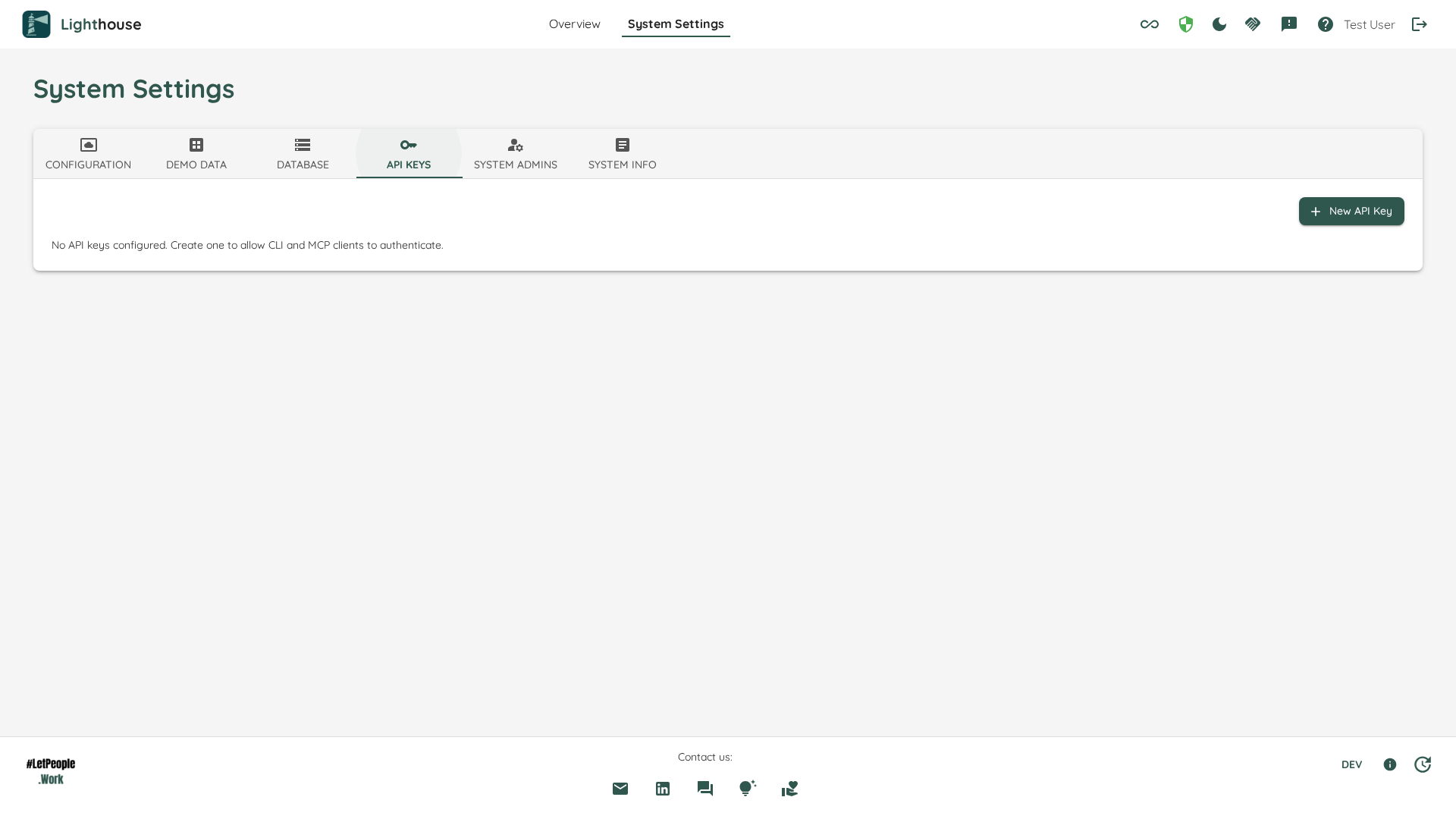
- Open System Settings.
- Go to API Keys.
- Click New API Key.
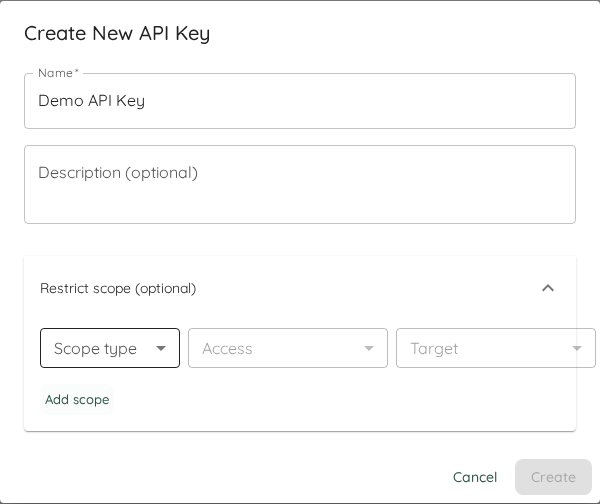
- Enter a Name and, optionally, a Description.
- Optionally expand Scopes to restrict the key to specific teams or portfolios. Each scope row picks a scope type (System / Team / Portfolio), a role, and — for team/portfolio scopes — the specific entity.
- Create the key and copy the generated plaintext value immediately.
The plaintext API key is shown only once, directly after creation. Lighthouse stores only a protected representation of the key. If you lose the value, you must delete the key and create a new one.
Managing Existing Keys
The API Keys table shows metadata for each configured key:
| Field | Meaning |
|---|---|
| Name | Friendly label for the key |
| Description | Optional note about where the key is used |
| Created At | When the key was created |
| Last Used | When the key was most recently used |
When RBAC is enabled, an additional Scopes column is shown. Each cell renders the per-key permission rows (role + scope target), or Unrestricted for keys that were created without explicit scopes (these inherit the owner’s permissions at runtime). When RBAC is disabled, the Scopes column is hidden — per-key scopes have no effect in that configuration.
This makes it easier to distinguish long-running automation keys from test credentials and to spot keys that are no longer in active use.
Deleting a Key
Keys can be deleted at any time from the Actions column.
Deletion is permanent. There is no in-place rotate or reveal action. The normal lifecycle is:
- Create a new key.
- Update the consuming script, CLI config, or MCP server.
- Delete the old key.
Using the Key
Most Lighthouse automation clients read the key from LIGHTHOUSE_API_KEY.
CLI example:
LIGHTHOUSE_API_KEY=<key> lh team list --json
MCP stdio example:
LIGHTHOUSE_URL=https://lighthouse.example.com \
LIGHTHOUSE_API_KEY=<key> \
npx -y @letpeoplework/lighthouse-mcp-stdio
MCP HTTP example:
LIGHTHOUSE_URL=https://lighthouse.example.com \
LIGHTHOUSE_API_KEY=<key> \
npx -y @letpeoplework/lighthouse-mcp-http
For broader setup examples, including Docker and MCP client configuration, see AI and Automation.