This page will give you an overview of the specifics to Azure DevOps when using Lighthouse. In detail, it will cover:
- Work Tracking System Connection
- Authentication
- Additional Fields
- Options
- Query
- Team Backlog
- Portfolios
- Feature Order
- Board Wizard
- Dependencies
Work Tracking System Connection
To create a connection to an Azure DevOps system, you need two things:
- The URL of your Azure DevOps Instance
- A Personal Access Token (PAT)
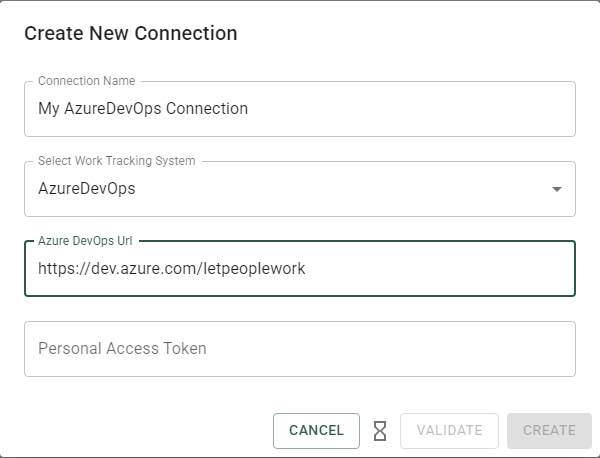
The URL will look something like this: https://dev.azure.com/letpeoplework where letpeoplework would be your organization name. You don’t need to specify any Team Project, this should be part of the Query.
Authentication
Lighthouse supports two authentication methods against Azure DevOps. OAuth (against an Entra ID app registration) is the recommended path because it removes per-user token rotation; Personal Access Tokens are simpler to set up but pin the connection to one human’s credential.
Azure DevOps (OAuth)
OAuth lets you authorise Lighthouse as an Entra ID application in the same tenant that owns your Azure DevOps organisation — no shared PAT to rotate, no service account to manage. OAuth is a Premium feature and applies to Azure DevOps Services (dev.azure.com); on-premises Azure DevOps Server continues to use PATs.
Register an Entra ID app
You need an Entra ID app registration in the same tenant that owns the Azure DevOps organisation you want to connect.
- Sign in to the Azure portal with an account that can create app registrations in the tenant (typically Application Developer or higher).
- Microsoft Entra ID → App registrations → New registration.
- Name the app (e.g. Lighthouse —
<org>). -
Pick a supported account type:
- Single tenant (recommended for a self-hosted Lighthouse serving one tenant). You MUST paste the Directory (tenant) ID into Lighthouse later so it targets the per-tenant Microsoft endpoint — the
/common/endpoint rejects single-tenant clients withunauthorized_client. - Multi-tenant: only if a single Lighthouse instance serves Azure DevOps organisations across multiple Entra tenants. Adds a verified-publisher requirement and broadens consent surface. Leave Directory (Tenant) ID empty in Lighthouse.
- Single tenant (recommended for a self-hosted Lighthouse serving one tenant). You MUST paste the Directory (tenant) ID into Lighthouse later so it targets the per-tenant Microsoft endpoint — the
- Leave Redirect URI blank for now; click Register.
- On the app’s Overview page, copy the Application (client) ID and the Directory (tenant) ID.
Set the redirect URI
- In the app registration: Authentication → Add a platform → Web.
- Redirect URI:
{your-lighthouse-base-url}/api/oauth/callback. The host must match what your operators have configured asLighthouse:BaseUrl(see OAuth Callback Base URL). - The redirect URI MUST be
https://in any production deployment. Entra ID acceptshttp://localhostfor local development only — every other host must use HTTPS.
Add the API permission
- API permissions → Add a permission → APIs my organization uses → search for Azure DevOps → select it.
- Pick Delegated permissions and tick
vso.work_write(read-and-write to work items, queries, boards, and area/iteration paths). Lighthouse handles the Microsoft v2.0 resource-prefixing transparently — you do not need to add the GUID prefix manually. offline_accessis requested as an OIDC protocol scope; do not add it under API permissions.- Click Grant admin consent for
<tenant>. Tenant-wide admin consent is required so the connector-admin (who may not be a tenant admin) does not get blocked withAADSTS65001.
Create a client secret
- Certificates & secrets → Client secrets → New client secret.
- Description (e.g. Lighthouse — production), pick an expiry (Microsoft caps at 24 months).
- Click Add and copy the secret’s Value immediately — the portal only shows it once.
- Record the expiry. Lighthouse does not auto-rotate Entra ID client secrets; when the secret expires the connection moves to
RefreshFailedand an admin must mint a new one and paste it back into the connection form.
Configure the connection in Lighthouse
- Settings → Connections → New Azure DevOps connection (or Edit an existing one if you are migrating off a PAT).
- Set Authentication to Azure DevOps (OAuth). Hidden if your instance has no Premium licence.
- Fill in: Organization URL (
https://dev.azure.com/<org>), Client ID, Directory (Tenant) ID (single-tenant) or leave empty (multi-tenant), Client Secret. - Verify the read-only Callback URL matches exactly what you registered in the Entra app. If it shows a warning, set
Lighthouse:BaseUrlon the server to the publichttps://URL first and reload the page — Entra rejects non-HTTPS redirect URIs for every host exceptlocalhost. - Click Connect. A browser popup opens against
login.microsoftonline.com; sign in, Accept, and the popup closes when consent succeeds.
Silent refresh and reconnect
Microsoft access tokens expire after roughly an hour. Lighthouse refreshes them silently before they expire; the admin sees nothing. If a refresh fails (revoked grant, expired client secret, scope tightened, network timeout) the connection’s Status transitions to RefreshFailed, a yellow Reconnect required banner appears on the connection card, background syncs against that connection stop, and you have to click Reconnect and complete the Microsoft consent flow again — or, if the client secret has expired, mint a new one in Certificates & secrets and paste the new value into the connection.
When at least one OAuth connection exists, system admins see a cloud icon in the application header that reports OAuth health at a glance.
Troubleshooting
| Symptom | Likely cause | Fix |
|---|---|---|
AADSTS50011: Reply URL mismatch after consent | Redirect URI registered in the Entra app does not match {Lighthouse:BaseUrl}/api/oauth/callback exactly. | Confirm Lighthouse:BaseUrl. Entra compares scheme + host + port + path exactly — a trailing slash or wrong scheme breaks the match. |
AADSTS65001: not consented | The Azure DevOps API permission is missing admin consent, or the connector-admin lacks consent rights. | App → API permissions → Grant admin consent for <tenant> → retry Connect. |
AADSTS650053: scope … doesn't exist on the resource '00000003-…' | vso.work_write is missing from the app’s API permissions. The 00000003-… resource in the error is Microsoft Graph — the v2.0 endpoints default to Graph when no resource prefix is supplied, which fires when no Azure DevOps permission is granted yet. | Add the Azure DevOps → Delegated → vso.work_write permission, grant admin consent, retry. |
unauthorized_client: client does not exist or is not enabled for consumers | The Entra app is single-tenant but Lighthouse hit /common/ because the Directory (Tenant) ID field is empty. | Paste the tenant ID from the app’s Overview page into Lighthouse, save, retry — or switch the app to multi-tenant. |
| Popup blocked when clicking Connect | The browser blocked the popup against login.microsoftonline.com. | Allow popups for the Lighthouse origin and retry. |
| Yellow “Reconnect required” banner on a previously-syncing connection | Silent refresh failed — expired client secret, revoked grant, scope tightened. | If the secret expired, mint a new one in Certificates & secrets and paste it into the connection. Otherwise click Reconnect and complete consent again. |
VssServiceException: Identity {guid} has not been materialized, please use interactive login over the browser first. on the first API call after connecting | The Entra account you OAuth’d with has never signed into the target Azure DevOps organisation interactively. Azure DevOps maintains its own user table separate from Entra and refuses to recognise Entra identities until a browser sign-in materialises them. OAuth itself worked; the token is valid; ADO just doesn’t know the principal yet. | Open https://dev.azure.com/{your-org} in a fresh browser tab, sign in with the same Microsoft account, accept any “request access” prompt, wait for the ADO home page to load. That one interactive sign-in materialises the identity. Then retry the failing Lighthouse operation. No need to re-do OAuth consent. |
For deeper issues, capture the failing callback URL from the browser’s address bar (it contains the error= / error_description= parameters along with the AADSTS code) and include it when reporting the problem.
Personal Access Token
If you cannot use OAuth (on-premises Azure DevOps Server, or no Premium licence), authenticate with a PAT. See the Microsoft documentation for how to mint one.
Treat the Personal Access Token like a password: don’t share it, and don’t keep it anywhere in plain text. Lighthouse encrypts it before it is written to the database, never sends it back to the browser, and you can revoke it in Azure DevOps at any time. Security explains how that works, and what it does not protect against.
Additional Fields
Lighthouse allows you to configure Additional Fields for Azure DevOps connections. These fields are used to retrieve and display extra information from your work items, such as custom properties or metadata that are not part of the default set.
The community edition supports one additional field. You get unlimited with the premium license.
Example Additional Fields
Following may be interesting additional fields for Jira:
- Iteration Path (
System.IterationPath) - Area Path (
System.AreaPath) - Size (
Microsoft.VSTS.Scheduling.Size)
How to Add or Configure Additional Fields
You can manage additional fields in the connection settings UI. When adding a field, you will be prompted for:
- Display Name: A user-friendly name for the field.
- Field Reference: The Azure DevOps field reference (e.g.,
System.IterationPath,Custom.MyField) or name (e.g.Iteration PathorMy Field).
For help finding the correct field reference, see the Azure DevOps field documentation. The UI provides direct links and helper text to guide you.
Example: Adding a Custom Field
Suppose you want to add a custom field called “Business Value”. You would enter:
- Display Name:
Business Value - Field Reference:
Custom.BusinessValue
Options
Request Timeout
- Request Timeout (seconds): Controls how long Lighthouse will wait for a response from Azure DevOps before timing out. The default is
100seconds, but you can adjust this in the connection settings if you experience slow network conditions or large queries.
Query
Queries for Azure DevOps are written in the Work Item Query Language (WIQL). An example Query for a Team called “Binary Blazers” in the Team Project “Lighthouse Demo” could look like this:
[System.TeamProject] = "Lighthouse Demo" AND [System.AreaPath] = "Lighthouse Demo\Binary Blazers"
You can use any kind of filtering you’d like and that is valid according to the WIQL language. An extended query that would exclude certain items based on their tags would look like this:
[System.TeamProject] = "Lighthouse Demo" AND [System.AreaPath] = "Lighthouse Demo\Binary Blazers" AND [System.Tags] NOT CONTAINS "Automation"
Team Backlog
When you create a new team, you will have to define a query that will get the items that belong to the specific team backlog. The query should not specify Work Item Types (for example Story, Bug, etc.) nor specific Work Item States (like In Progress, Canceled), as those things will be specified outside the query.
The work items we look for on team level are the ones that you plan with on that level. Often this would be User Stories and Bugs. They should be delivering value and you should be able to consistently close them. Tasks tend to be too detailed and technical (so they do not deliver value), while Epics and Features may be too big (see Portfolios for more details on how to handle this). This is the general guidance, but your context might be different, so adjust this as needed.
What should be in there is everything else that defines whether an item is belonging to a team or not, like:
- Team Project (via System.TeamProject)
- Tags (via System.Tags)
- Area Paths (via [System.AreaPath])
- Anything else that is needed to identify an item for your team, including custom fields if you have them
[System.TeamProject] = "Lighthouse Demo" AND [System.AreaPath] = "Lighthouse Demo\Binary Blazers"
[System.TeamProject] = "Lighthouse Demo" AND [System.Tags] NOT CONTAINS "Automation"
The whole syntax of WIQL is at your disposal. Remember, with great power comes great responsibility. Lighthouse will not be able to validate if what you write is making sense or not. There is a minimal verification on saving of a team, that makes sure that at least one item is found by the query. As long as that’s the case, Lighthouse will assume it’s correct.
Portfolios
Portfolios are made up of items that have child items - in Lighthouse this is called a Feature. In an Azure DevOps context, this often means either Epics or Features. But it could be other (custom) types as well.
When creating a portfolio, you need to specify a query that will fetch the features that are relevant for this portfolio. This may be via:
- AreaPath ([System.AreaPath])
- Tags ([System.Tags])
- Whatever else may identify a feature to belong to a specific portfolio
As with the Teams, you do not have to specify work item type and state in the query itself when defining the portfolio.
Example WIQL Queries for Portfolios could look like these:
[System.TeamProject] = "Lighthouse Demo" AND [System.Tags] CONTAINS "Release 1.33.7"
[System.TeamProject] = "Lighthouse Demo" AND [System.AreaPath] = "Lighthouse Demo\Release 1.33.7" AND [System.Tags] NOT CONTAINS "Technical Debt"
Feature Order
The Order of Features (be it Epics, Features, or anything else) is based on the Stack Rank property. This property is stored in the field [Microsoft.VSTS.Common.StackRank].
Azure DevOps is shwoing this as Order in the Backlog View, and in general the field is adjusted if you shift items up or down (in the Backlog or Boards view).
Check out the documentation from Microsoft to learn more.
Board Wizard
Use the Azure DevOps Board Wizard to automatically discover and import configuration from the Boards in your Azure DevOps Instance. The Wizard will:
- Show you all boards from all the Projects you have access
- Upon selection of a Board, fetch the WIQL Query, Work Item Types, and State Configuration for the board
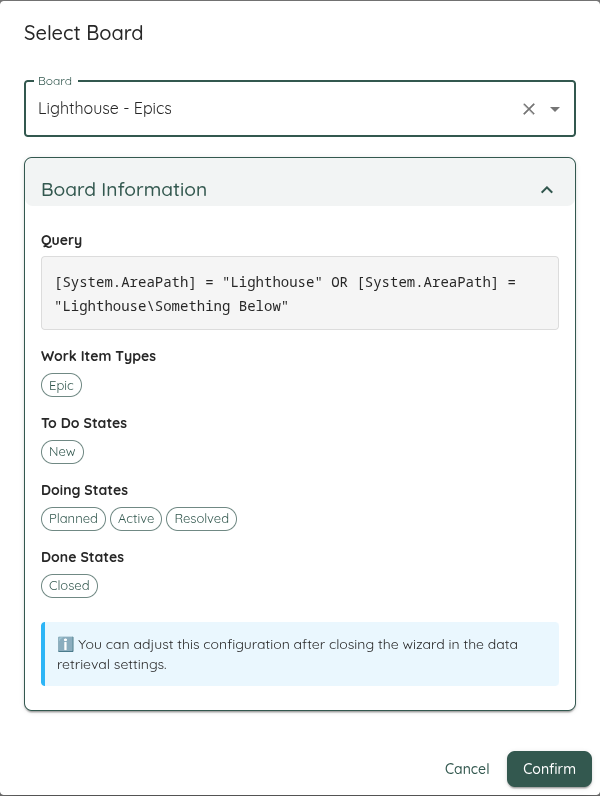
You may adjust all those values to your liking after that. For example, if the state mapping is not what you want to use.
Please be aware that this is a one-time operation. Lighthouse does not keep your settings in sync with the selected board. If you make changes in your Azure DevOps board, you must either update them manually, or rerun the Wizard.
Dependencies
Lighthouse reads what a Feature is waiting on from the Predecessor/Successor link type (System.LinkTypes.Dependency-Reverse). A Feature with a Predecessor link to another work item is shown as depending on it.
Azure DevOps writes every such link twice, once at each end — the waiting item gets a Predecessor, the item being waited on gets a Successor. Only the waiting end is read, so each dependency is recorded once. Lighthouse never creates, changes or removes a link: remove one in Azure DevOps and it disappears here on the next refresh.
If your teams record dependencies in a custom field rather than through this link, a portfolio can name that field instead — see Dependency Field.
What you then see is described on the Features page.